


Page 25 - CC2018_PS_Look_Inside
P. 25
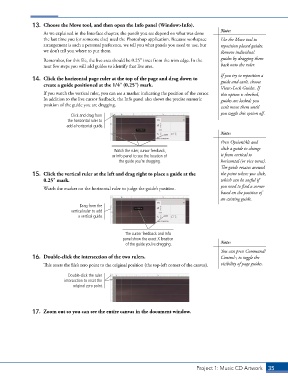
13.  Choose the Move tool, and then open the Info panel (Window>Info).
                                                                                            Note:
                   As we explained in the Interface chapter, the panels you see depend on what was done
                   the last time you (or someone else) used the Photoshop application. Because workspace   Use the Move tool to
                   arrangement is such a personal preference, we tell you what panels you need to use, but   reposition placed guides.
                   we don’t tell you where to put them.                                     Remove individual

                   Remember, for this file, the live area should be 0.25″ inset from the trim edge. In the   guides by dragging them
                   next few steps you will add guides to identify that live area.           back onto the ruler.

                                                                                            If you try to reposition a
               14.  Click the horizontal page ruler at the top of the page and drag down to   guide and can’t, choose
                   create a guide positioned at the 1/4″ (0.25″) mark.
                                                                                            View>Lock Guides. If
                   If you watch the vertical ruler, you can see a marker indicating the position of the cursor.   this option is checked,
                   In addition to the live cursor feedback, the Info panel also shows the precise numeric   guides are locked; you
                   position of the guide you are dragging.                                  can’t move them until
                                                                                            you toggle this option off.
                              Click and drag from
                             the horizontal ruler to
                            add a horizontal guide.
                                                                                            Note:
                                                                                            Press Option/Alt and
                                                                                            click a guide to change
                                                Watch the ruler, cursor feedback,
                                               or Info panel to see the location of         it from vertical to
                                                  the guide you’re dragging.                horizontal (or vice versa).
                                                                                            The guide rotates around
               15.  Click the vertical ruler at the left and drag right to place a guide at the   the point where you click,
                   0.25″ mark.                                                              which can be useful if
                   Watch the marker on the horizontal ruler to judge the guide’s position.  you need to find a corner
                                                                                            based on the position of
                                                                                            an existing guide.
                                  Drag from the
                              vertical ruler to add
                                 a vertical guide.


                                                     The cursor feedback and Info
                                                    panel show the exact X location
                                                     of the guide you’re dragging.          Note:
                                                                                            You can press Command/
               16.  Double-click the intersection of the two rulers.                        Control-; to toggle the

                   This resets the file’s zero point to the original position (the top-left corner of the canvas).  visibility of page guides.
                             Double-click the ruler
                            intersection to reset the
                               original zero point.


               17.  Zoom out so you can see the entire canvas in the document window.


                                                                                  Project 1: Music CD Artwork   35

