


Page 23 - CC2018_PS_Look_Inside
P. 23
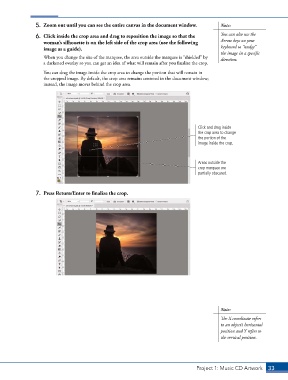
5.  Zoom out until you can see the entire canvas in the document window.    Note:
                6.  Click inside the crop area and drag to reposition the image so that the   You can also use the
                   woman’s silhouette is on the left side of the crop area (use the following   Arrow keys on your
                   image as a guide).                                                       keyboard to “nudge”
                                                                                            the image in a specific
                   When you change the size of the marquee, the area outside the marquee is “shielded” by   direction.
                   a darkened overlay so you can get an idea of what will remain after you finalize the crop.
                   You can drag the image inside the crop area to change the portion that will remain in
                   the cropped image. By default, the crop area remains centered in the document window;
                   instead, the image moves behind the crop area.


                                                                                   Click and drag inside
                                                                                   the crop area to change
                                                                                   the portion of the
                                                                                   image inside the crop.


                                                                                   Areas outside the
                                                                                   crop marquee are
                                                                                   partially obscured.


                7.  Press Return/Enter to finalize the crop.


                                                                                            Note:
                                                                                            The X coordinate refers
                                                                                            to an object’s horizontal
                                                                                            position and Y refers to
                                                                                            the vertical position.


                                                                                  Project 1: Music CD Artwork   33

