


Page 59 - CC2017_PS_Look_Inside
P. 59
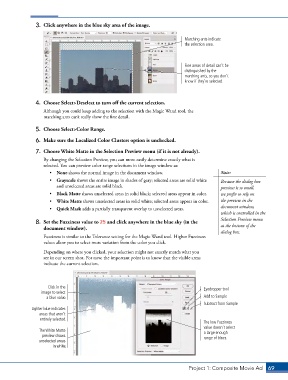
3.  Click anywhere in the blue sky area of the image.

                                                                             Marching ants indicate
                                                                             the selection area.


                                                                             Fine areas of detail can’t be
                                                                             distinguished by the
                                                                             marching ants, so you don’t
                                                                             know if they’re selected.


                4.  Choose Select>Deselect to turn off the current selection.
                   Although you could keep adding to the selection with the Magic Wand tool, the
                   marching ants can’t really show the fine detail.

                5.  Choose Select>Color Range.

                6.  Make sure the Localized Color Clusters option is unchecked.

                7.  Choose White Matte in the Selection Preview menu (if it is not already).
                   By changing the Selection Preview, you can more easily determine exactly what is
                   selected. You can preview color range selections in the image window as:
                      •  None shows the normal image in the document window.                Note:
                      •  Grayscale shows the entire image in shades of gray; selected areas are solid white   Because the dialog box
                        and unselected areas are solid black.                               preview is so small,
                      •  Black Matte shows unselected areas in solid black; selected areas appear in color.  we prefer to rely on
                      •  White Matte shows unselected areas in solid white; selected areas appear in color.  the preview in the
                      •  Quick Mask adds a partially transparent overlay to unselected areas.  document window,
                                                                                            which is controlled in the
                                                                                            Selection Preview menu
                8.  Set the Fuzziness value to 25 and click anywhere in the blue sky (in the
                   document window).                                                        at the bottom of the
                                                                                            dialog box.
                   Fuzziness is similar to the Tolerance setting for the Magic Wand tool. Higher Fuzziness
                   values allow you to select more variation from the color you click.
                   Depending on where you clicked, your selection might not exactly match what you
                   see in our screen shot. For now, the important point is to know that the visible areas
                   indicate the current selection.


                     Click in the                                                    Eyedropper tool
                  image to select
                    a blue value.                                                    Add to Sample
                                                                                     Subtract from Sample
              Lighter blue indicates
                 areas that aren’t
                  entirely selected.
                                                                                     The low Fuzziness
                                                                                     value doesn’t select
                 The White Matte                                                     a large enough
                  preview shows                                                      range of blues.
                 unselected areas
                       in white.


                                                                               Project 1: Composite Movie Ad    69

