


Page 55 - CC2017_PS_Look_Inside
P. 55
Understanding the Lasso Tools
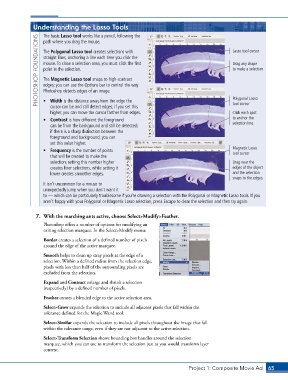
                   The basic Lasso tool works like a pencil, following the
                 PHOTOSHOP FOUNDATIONS  The Polygonal Lasso tool creates selections with         Lasso tool cursor
                   path where you drag the mouse.


                   straight lines, anchoring a line each time you click the
                   mouse. To close a selection area, you must click the first
                                                                                                 Drag any shape
                   point in the selection.
                                                                                                 to make a selection.
                   The Magnetic Lasso tool snaps to high-contrast
                   edges; you can use the Options bar to control the way
                   Photoshop detects edges of an image.
                   •  Width is the distance away from the edge the
                                                                                                 tool cursor
                      cursor can be and still detect edges; if you set this
                      higher, you can move the cursor farther from edges.                        Polygonal Lasso
                                                                                                 Click each spot
                   •  Contrast is how different the foreground                                   to anchor the
                      can be from the background and still be detected;                          selection line.
                      if there is a sharp distinction between the
                      foreground and background, you can
                      set this value higher.
                   •  Frequency is the number of points                                          Magnetic Lasso
                                                                                                 tool cursor
                      that will be created to make the
                      selection; setting this number higher                                      Drag near the
                      creates finer selections, while setting it                                 edges of the object
                      lower creates smoother edges.                                              and the selection
                                                                                                 snaps to the edges.
                   It isn’t uncommon for a mouse to
                   unexpectedly jump when you don’t want it
                   to — which can be particularly troublesome if you’re drawing a selection with the Polygonal or Magnetic Lasso tools. If you
                   aren’t happy with your Polygonal or Magnetic Lasso selection, press Escape to clear the selection and then try again.


                7.  With the marching ants active, choose Select>Modify>Feather.
                   Photoshop offers a number of options for modifying an
                   exiting selection marquee. In the Select>Modify menu:

                   Border creates a selection of a defined number of pixels
                   around the edge of the active marquee.

                   Smooth helps to clean up stray pixels at the edge of a
                   selection. Within a defined radius from the selection edge,
                   pixels with less than half of the surrounding pixels are
                   excluded from the selection.
                   Expand and Contract enlarge and shrink a selection
                   (respectively) by a defined number of pixels.

                   Feather creates a blended edge to the active selection area.
                   Select>Grow expands the selection to include all adjacent pixels that fall within the
                   tolerance defined for the Magic Wand tool.
                   Select>Similar expands the selection to include all pixels throughout the image that fall
                   within the tolerance range, even if they are not adjacent to the active selection.
                   Select>Transform Selection shows bounding box handles around the selection
                   marquee, which you can use to transform the selection just as you would transform layer
                   content.


                                                                               Project 1: Composite Movie Ad    65

