


Page 52 - CC2017_PS_Look_Inside
P. 52
Navigating the History                              thumbnails
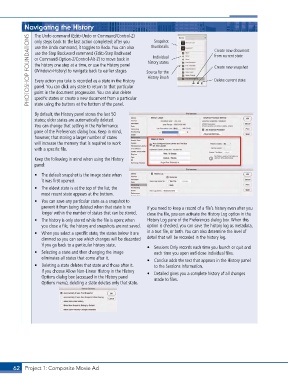
               The Undo command (Edit>Undo or Command/Control-Z)
             PHOTOSHOP FOUNDATIONS  use the Step Backward command (Edit>Step Backward   Source for the   Create new document
                                                                 Snapshot
               only steps back to the last action completed; after you
               use the Undo command, it toggles to Redo. You can also
                                                                                         from current state
                                                                Individual
               or Command-Option-Z/Control-Alt-Z) to move back in
                                                              history states
               the history one step at a time, or use the History panel
                                                                                         Create new snapshot
               (Window>History) to navigate back to earlier stages.
                                                              History Brush
                                                                                         Delete current state
               Every action you take is recorded as a state in the History
               panel. You can click any state to return to that particular
               point in the document progression. You can also delete
               specific states or create a new document from a particular
               state using the buttons at the bottom of the panel.
               By default, the History panel stores the last 50
               states; older states are automatically deleted.
               You can change that setting in the Performance
               pane of the Preferences dialog box. Keep in mind,
               however, that storing a larger number of states
               will increase the memory that is required to work
               with a specific file.
               Keep the following in mind when using the History
               panel:
               •  The default snapshot is the image state when
                  it was first opened.
               •  The oldest state is at the top of the list; the
                  most recent state appears at the bottom.
               •  You can save any particular state as a snapshot to
                  prevent it from being deleted when that state is no   If you need to keep a record of a file’s history even after you
                  longer within the number of states that can be stored.  close the file, you can activate the History Log option in the
               •  The history is only stored while the file is open; when   History Log pane of the Preferences dialog box. When this
                  you close a file, the history and snapshots are not saved.   option is checked, you can save the history log as metadata,
               •  When you select a specific state, the states below it are   in a text file, or both. You can also determine the level of
                  dimmed so you can see which changes will be discarded   detail that will be recorded in the history log.
                  if you go back to a particular history state.
                                                              •  Sessions Only records each time you launch or quit and
               •  Selecting a state and then changing the image   each time you open and close individual files.
                  eliminates all states that come after it.
                                                              •  Concise adds the text that appears in the History panel
               •  Deleting a state deletes that state and those after it.   to the Sessions information.
                  If you choose Allow Non-Linear History in the History   •  Detailed gives you a complete history of all changes
                  Options dialog box (accessed in the History panel   made to files.
                  Options menu), deleting a state deletes only that state.


       62 Project 1: Composite Movie Ad

