


Page 47 - CC2017_PS_Look_Inside
P. 47
14.  Click the Commit Transform button on the Options bar (or press
                   Return/Enter) to finalize the transformation.

                   If you press Return/Enter, you have to press it two times to finalize the transformation.
                   The first time you press it, you apply the change to the active field; the second time, you
                   finalize the transformation and exit Free Transform mode.


               15.  Collapse the layer group by clicking the arrow at the left of the group name.


               16.  Save the file and continue to the next exercise.


                  trAnsForm A regulAr lAyer

              Smart Object layers enable non-destructive transformations, which means those
              transformations can be changed or undone without affecting the quality of the layer
              content. Transforming a regular layer, on the other hand, is destructive and permanent.

                1.  With aftermath.psd open, hide all but the Storm layer. Click the Storm
                   layer in the Layers panel to select it.

                2.  If necessary, drag the layer content so it is approximately centered on the
                   canvas.

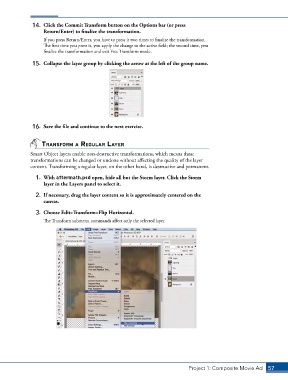
                3.  Choose Edit>Transform>Flip Horizontal.
                   The Transform submenu commands affect only the selected layer.


                                                                               Project 1: Composite Movie Ad    57

