


Page 58 - Adobe Photoshop 2021
P. 58
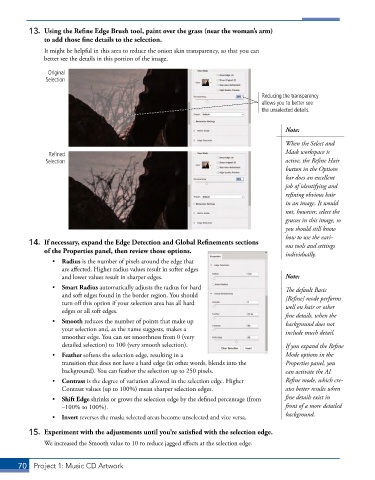
13.  Using the Refine Edge Brush tool, paint over the grass (near the woman’s arm)
              to add those fine details to the selection.
               It might be helpful in this area to reduce the onion skin transparency, so that you can
               better see the details in this portion of the image.

                Original
               Selection


                                                                                 Reducing the transparency
                                                                                 allows you to better see
                                                                                 the unselected details.


                                                                                        Note:
                                                                                        When the Select and
                                                                                        Mask workspace is
                Refined
               Selection                                                                active, the Refine Hair
                                                                                        button in the Options
                                                                                        bar does an excellent
                                                                                        job of identifying and
                                                                                        refining obvious hair
                                                                                        in an image. It would
                                                                                        not, however, select the
                                                                                        grasses in this image, so
                                                                                        you should still know
                                                                                        how to use the vari-
          14.  If necessary, expand the Edge Detection and Global Refinements sections   ous tools and settings
              of the Properties panel, then review those options.                       individually.
                 •  Radius is the number of pixels around the edge that
                    are affected. Higher radius values result in softer edges
                    and lower values result in sharper edges.                           Note:
                 •  Smart Radius automatically adjusts the radius for hard              The default Basic
                    and soft edges found in the border region. You should               [Refine] mode performs
                    turn off this option if your selection area has all hard            well on hair or other
                    edges or all soft edges.
                                                                                        fine details, when the
                 •  Smooth reduces the number of points that make up                    background does not
                    your selection and, as the name suggests, makes a                   include much detail.
                    smoother edge. You can set smoothness from 0 (very
                    detailed selection) to 100 (very smooth selection).                 If you expand the Refine
                 •  Feather softens the selection edge, resulting in a                  Mode options in the
                    transition that does not have a hard edge (in other words, blends into the   Properties panel, you
                    background). You can feather the selection up to 250 pixels.        can activate the AI
                 •  Contrast is the degree of variation allowed in the selection edge. Higher   Refine mode, which cre-
                    Contrast values (up to 100%) mean sharper selection edges.          ates better results when
                 •  Shift Edge shrinks or grows the selection edge by the defined percentage (from   fine details exist in
                    –100% to 100%).                                                     front of a more detailed
                                                                                        background.
                 •  Invert reverses the mask; selected areas become unselected and vice versa.

          15.  Experiment with the adjustments until you’re satisfied with the selection edge.
               We increased the Smooth value to 10 to reduce jagged effects at the selection edge.


       70  Project 1: Music CD Artwork

