


Page 62 - Adobe Photoshop 2021
P. 62
Understanding Channels

           You need a bit of background about channels to understand what’s happening in the Quick Mask you will use in the next
           exercise . (You will use channels extensively in later projects .)
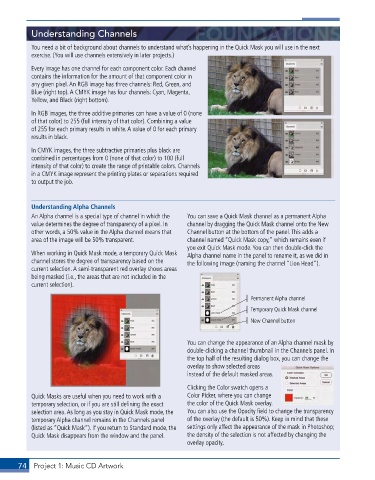
           Every image has one channel for each component color . Each channel
           contains the information for the amount of that component color in
           any given pixel . An RGB image has three channels: Red, Green, and
           Blue (right top) . A CMYK image has four channels: Cyan, Magenta,
           Yellow, and Black (right bottom) .

           In RGB images, the three additive primaries can have a value of 0 (none
           of that color) to 255 (full intensity of that color) . Combining a value
           of 255 for each primary results in white . A value of 0 for each primary
           results in black .

           In CMYK images, the three subtractive primaries plus black are
           combined in percentages from 0 (none of that color) to 100 (full
           intensity of that color) to create the range of printable colors . Channels
           in a CMYK image represent the printing plates or separations required
           to output the job .


           Understanding Alpha Channels
           An Alpha channel is a special type of channel in which the   You can save a Quick Mask channel as a permanent Alpha
           value determines the degree of transparency of a pixel . In   channel by dragging the Quick Mask channel onto the New
           other words, a 50% value in the Alpha channel means that   Channel button at the bottom of the panel . This adds a
           area of the image will be 50% transparent .    channel named “Quick Mask copy,” which remains even if
                                                          you exit Quick Mask mode . You can then double-click the
           When working in Quick Mask mode, a temporary Quick Mask   Alpha channel name in the panel to rename it, as we did in
           channel stores the degree of transparency based on the   the following image (naming the channel “Lion Head”) .
           current selection . A semi-transparent red overlay shows areas
           being masked (i .e ., the areas that are not included in the
           current selection) .
                                                                              Permanent Alpha channel
                                                                              Temporary Quick Mask channel
                                                                              New Channel button


                                                          You can change the appearance of an Alpha channel mask by
                                                          double-clicking a channel thumbnail in the Channels panel . In
                                                          the top half of the resulting dialog box, you can change the
                                                          overlay to show selected areas
                                                          instead of the default masked areas .

                                                          Clicking the Color swatch opens a
           Quick Masks are useful when you need to work with a   Color Picker, where you can change
           temporary selection, or if you are still defining the exact   the color of the Quick Mask overlay .
           selection area . As long as you stay in Quick Mask mode, the   You can also use the Opacity field to change the transparency
           temporary Alpha channel remains in the Channels panel   of the overlay (the default is 50%) . Keep in mind that these
           (listed as “Quick Mask”) . If you return to Standard mode, the   settings only affect the appearance of the mask in Photoshop;
           Quick Mask disappears from the window and the panel .  the density of the selection is not affected by changing the
                                                          overlay opacity .


       74  Project 1: Music CD Artwork

