


Page 53 - Adobe Photoshop 2021
P. 53
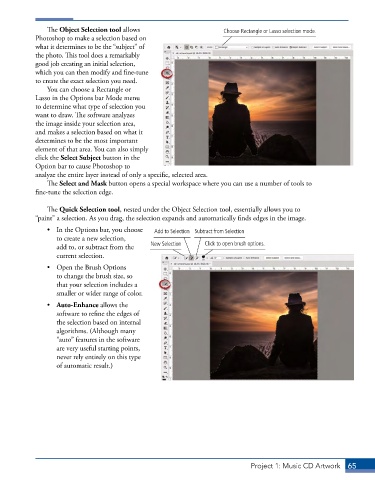
The Object Selection tool allows                      Choose Rectangle or Lasso selection mode.
            Photoshop to make a selection based on
            what it determines to be the “subject” of
            the photo. This tool does a remarkably
            good job creating an initial selection,
            which you can then modify and fine-tune
            to create the exact selection you need.
               You can choose a Rectangle or
            Lasso in the Options bar Mode menu
            to determine what type of selection you
            want to draw. The software analyzes
            the image inside your selection area,
            and makes a selection based on what it
            determines to be the most important
            element of that area. You can also simply
            click the Select Subject button in the
            Option bar to cause Photoshop to
            analyze the entire layer instead of only a specific, selected area.
               The Select and Mask button opens a special workspace where you can use a number of tools to
            fine-tune the selection edge.

               The Quick Selection tool, nested under the Object Selection tool, essentially allows you to
            “paint” a selection. As you drag, the selection expands and automatically finds edges in the image.
               •  In the Options bar, you choose   Add to Selection Subtract from Selection
                  to create a new selection,
                  add to, or subtract from the   New Selection  Click to open brush options.
                  current selection.
               •  Open the Brush Options
                  to change the brush size, so
                  that your selection includes a
                  smaller or wider range of color.
               •  Auto-Enhance allows the
                  software to refine the edges of
                  the selection based on internal
                  algorithms. (Although many
                  “auto” features in the software
                  are very useful starting points,
                  never rely entirely on this type
                  of automatic result.)


                                                                              Project 1: Music CD Artwork  65

