


Page 61 - Adobe Photoshop 2021
P. 61
Automatically Selecting and Replacing the Sky

             If you choose Select>Sky, Photoshop automatically analyzes the image
             and creates a selection based on what it determines to be the sky . The
             function does a remarkable job, but does have some limitations . In the
             base image for this project, for example, it does not include the water
             area that you want to replace . We always encourage you to learn manual
             options for fine-tuning rather than relying only on automatic features .
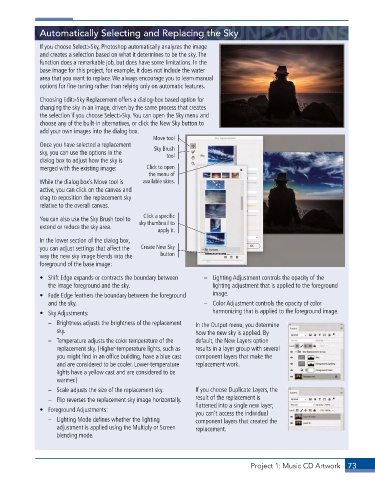
             Choosing Edit>Sky Replacement offers a dialog-box based option for
             changing the sky in an image, driven by the same process that creates
             the selection if you choose Select>Sky . You can open the Sky menu and
             choose any of the built-in alternatives, or click the New Sky button to
             add your own images into the dialog box .
                                                Move tool
             Once you have selected a replacement   Sky Brush
             sky, you can use the options in the    tool
             dialog box to adjust how the sky is
             merged with the existing image:  Click to open
                                              the menu of
             While the dialog box’s Move tool is   available skies.
             active, you can click on the canvas and
             drag to reposition the replacement sky
             relative to the overall canvas .

             You can also use the Sky Brush tool to   Click a specific
             extend or reduce the sky area .  sky thumbnail to
                                                 apply it.
             In the lower section of the dialog box,
             you can adjust settings that affect the   Create New Sky
             way the new sky image blends into the   button
             foreground of the base image:
             •  Shift Edge expands or contracts the boundary between   –  Lighting Adjustment controls the opacity of the
                the image foreground and the sky .                lighting adjustment that is applied to the foreground
             •  Fade Edge feathers the boundary between the foreground   image .
                and the sky .                                  –  Color Adjustment controls the opacity of color
             •  Sky Adjustments:                                  harmonizing that is applied to the foreground image .
                –  Brightness adjusts the brightness of the replacement   In the Output menu, you determine
                  sky .                                      how the new sky is applied . By
                –  Temperature adjusts the color temperature of the   default, the New Layers option
                  replacement sky . (Higher-temperature lights, such as   results in a layer group with several
                  you might find in an office building, have a blue cast   component layers that make the
                  and are considered to be cooler . Lower-temperature   replacement work .
                  lights have a yellow cast and are considered to be
                  warmer .)
                –  Scale adjusts the size of the replacement sky .  If you choose Duplicate Layers, the
                –  Flip reverses the replacement sky image horizontally .  result of the replacement is
                                                             flattened into a single new layer;
             •  Foreground Adjustments:
                                                             you can’t access the individual
                –  Lighting Mode defines whether the lighting   component layers that created the
                  adjustment is applied using the Multiply or Screen   replacement .
                  blending mode .


                                                                              Project 1: Music CD Artwork  73

