


Page 48 - Adobe Photoshop CC 2020
P. 48
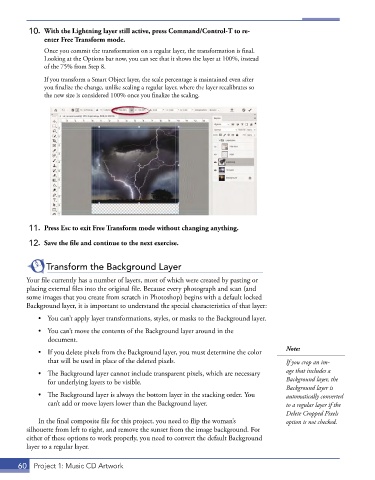
10.  With the Lightning layer still active, press Command/Control-T to re-
              enter Free Transform mode.
               Once you commit the transformation on a regular layer, the transformation is final.
               Looking at the Options bar now, you can see that it shows the layer at 100%, instead
               of the 75% from Step 8.
               If you transform a Smart Object layer, the scale percentage is maintained even after
               you finalize the change, unlike scaling a regular layer, where the layer recalibrates so
               the new size is considered 100% once you finalize the scaling.


          11.  Press Esc to exit Free Transform mode without changing anything.

          12.  Save the file and continue to the next exercise.


               Transform the Background Layer
         Your file currently has a number of layers, most of which were created by pasting or
         placing external files into the original file. Because every photograph and scan (and
         some images that you create from scratch in Photoshop) begins with a default locked
         Background layer, it is important to understand the special characteristics of that layer:

             •  You can’t apply layer transformations, styles, or masks to the Background layer.
             •  You can’t move the contents of the Background layer around in the
                document.
                                                                                        Note:
             •  If you delete pixels from the Background layer, you must determine the color
                that will be used in place of the deleted pixels.                       If you crop an im-
             •  The Background layer cannot include transparent pixels, which are necessary   age that includes a
                for underlying layers to be visible.                                    Background layer, the
                                                                                        Background layer is
             •  The Background layer is always the bottom layer in the stacking order. You   automatically converted
                can’t add or move layers lower than the Background layer.               to a regular layer if the
                                                                                        Delete Cropped Pixels
             In the final composite file for this project, you need to flip the woman’s   option is not checked.
         silhouette from left to right, and remove the sunset from the image background. For
         either of these options to work properly, you need to convert the default Background
         layer to a regular layer.


       60  Project 1: Music CD Artwork

