


Page 45 - Adobe Photoshop CC 2020
P. 45
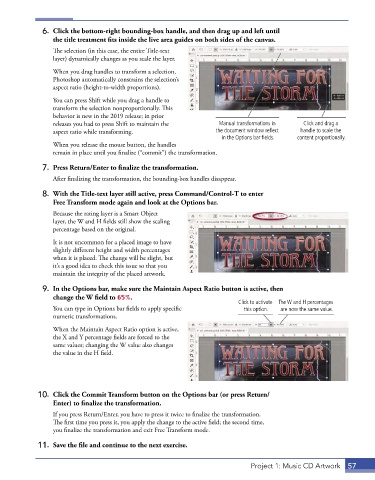
6.  Click the bottom-right bounding-box handle, and then drag up and left until
                 the title treatment fits inside the live area guides on both sides of the canvas.
                 The selection (in this case, the entire Title-text
                 layer) dynamically changes as you scale the layer.

                 When you drag handles to transform a selection,
                 Photoshop automatically constrains the selection’s
                 aspect ratio (height-to-width proportions).
                 You can press Shift while you drag a handle to
                 transform the selection nonproportionally. This
                 behavior is new in the 2019 release; in prior
                 releases you had to press Shift to maintain the    Manual transformations in   Click and drag a
                 aspect ratio while transforming.                  the document window reflect   handle to scale the
                                                                     in the Options bar fields.  content proportionally.
                 When you release the mouse button, the handles
                 remain in place until you finalize (“commit”) the transformation.

              7.  Press Return/Enter to finalize the transformation.
                 After finalizing the transformation, the bounding-box handles disappear.

              8.  With the Title-text layer still active, press Command/Control-T to enter
                 Free Transform mode again and look at the Options bar.
                 Because the rating layer is a Smart Object
                 layer, the W and H fields still show the scaling
                 percentage based on the original.
                 It is not uncommon for a placed image to have
                 slightly different height and width percentages
                 when it is placed. The change will be slight, but
                 it’s a good idea to check this issue so that you
                 maintain the integrity of the placed artwork.

              9.  In the Options bar, make sure the Maintain Aspect Ratio button is active, then
                 change the W field to 65%.
                                                                          Click to activate  The W and H percentages
                 You can type in Options bar fields to apply specific      this option.  are now the same value.
                 numeric transformations.
                 When the Maintain Aspect Ratio option is active,
                 the X and Y percentage fields are forced to the
                 same values; changing the W value also changes
                 the value in the H field.


             10.  Click the Commit Transform button on the Options bar (or press Return/
                 Enter) to finalize the transformation.
                 If you press Return/Enter, you have to press it twice to finalize the transformation.
                 The first time you press it, you apply the change to the active field; the second time,
                 you finalize the transformation and exit Free Transform mode.

             11.  Save the file and continue to the next exercise.


                                                                              Project 1: Music CD Artwork  57

