


Page 42 - CS6_ID_Look_Inside
P. 42
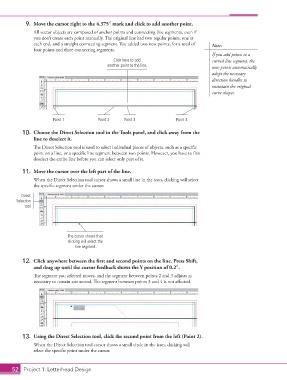
9.  Move the cursor right to the 4.375″ mark and click to add another point.
                    All vector objects are composed of anchor points and connecting line segments, even if
                    you don’t create each point manually. The original line had two regular points, one at
                    each end, and a straight connecting segment. You added two new points, for a total of   Note:
                    four points and three connecting segments.
                                                                                             If you add points to a
                                                     Click here to add                       curved line segment, the
                                                  another point to the line.                 new points automatically
                                                                                             adopt the necessary
                                                                                             direction handles to
                                                                                             maintain the original
                                                                                             curve shapes.


                            Point 1            Point 2   Point 3               Point 4

                10.  Choose the Direct Selection tool in the Tools panel, and click away from the
                    line to deselect it.
                    The Direct Selection tool is used to select individual pieces of objects, such as a specific
                    point on a line, or a specific line segment between two points. However, you have to first
                    deselect the entire line before you can select only part of it.

                11.  Move the cursor over the left part of the line.
                    When the Direct Selection tool cursor shows a small line in the icon, clicking will select
                    the specific segment under the cursor.

               Direct
             Selection
                tool


                                  The cursor shows that
                                  clicking will select the
                                     line segment.

                12.  Click anywhere between the first and second points on the line. Press Shift,
                    and drag up until the cursor feedback shows the Y position of 0.2″.
                    The segment you selected moves, and the segment between points 2 and 3 adjusts as
                    necessary to remain connected. The segment between points 3 and 4 is not affected.


                13.  Using the Direct Selection tool, click the second point from the left (Point 2).

                    When the Direct Selection tool cursor shows a small circle in the icon, clicking will
                    select the specific point under the cursor.


           52 Project 1: Letterhead Design

