


Page 41 - CS6_ID_Look_Inside
P. 41
5.  At the left end of the Control panel, change the Y field to 1″ and press
                        Return/Enter to apply the change.                                        Note:
                        Because you constrained this line, changing the Y field moves the entire line.  Remember, you do not
                                                                                                 need to type the units
                                                                                                 if you are entering
                                                                                                 a measurement in
                                                                                                 the default unit of
                                                                                                 measurement. We include
                                                                                                 the units in our steps for
                                                                                                 the sake of clarity.


                    6.  Choose the Pen tool in the Tools panel.

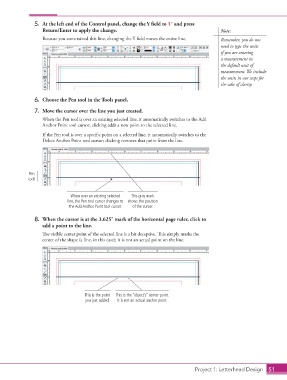
                    7.  Move the cursor over the line you just created.
                        When the Pen tool is over an existing selected line, it automatically switches to the Add
                        Anchor Point tool cursor; clicking adds a new point to the selected line.
                        If the Pen tool is over a specific point on a selected line, it automatically switches to the
                        Delete Anchor Point tool cursor; clicking removes that point from the line.


                  Pen
                  tool


                                   When over an existing selected   This gray mark
                                  line, the Pen tool cursor changes to  shows the position
                                   the Add Anchor Point tool cursor.  of the cursor.

                    8.  When the cursor is at the 3.625″ mark of the horizontal page ruler, click to
                        add a point to the line.
                        The visible center point of the selected line is a bit deceptive. This simply marks the
                        center of the shape (a line, in this case); it is not an actual point on the line.


                                         This is the point   This is the “object’s” center point.
                                         you just added.  It is not an actual anchor point.


                                                                                      Project 1: Letterhead Design  51

