


Page 40 - CS6_ID_Look_Inside
P. 40
create a simPle line
               InDesign includes two tools for creating lines: the Line tool for creating straight lines
               and the Pen tool for creating curved lines called Bézier curves (although you can
               also create straight lines with the Pen tool). In this exercise, you create the most basic
               element possible: a straight line. You then add anchor points to the line to create a   Note:
               multi-segment path.                                                           Bézier curves can be
                  Every line is composed of anchor points and line segments that connect those   difficult to master
               points. Even a simple straight line has two points, one at each end. More sophisticated   without a relatively
               shapes can be created by adding anchor points, and manipulating the direction handles   deep understanding of
               of those points to control the shape of segments that connect the different points.   geometry or trigonometry.
                  This concept is the heart of Bézier curves and vector-based drawing, and can be   The best training is to
               one of the most challenging skills for new designers to master. The Pen tool (and its   practice until you can
               variations) is extremely powerful, but also very confusing for new users. The best way   recognize and predict
               to understand this tool is simply to practice. As you gain experience, you will become   how moving a point or
               more comfortable with manipulating anchor points, handles, and line segments.   handle will affect the
                                                                                             connected segments.
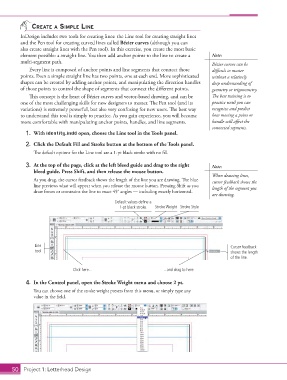
                 1.  With identity.indd open, choose the Line tool in the Tools panel.
                 2.  Click the Default Fill and Stroke button at the bottom of the Tools panel.

                    The default options for the Line tool are a 1-pt black stroke with no fill.

                 3.  At the top of the page, click at the left bleed guide and drag to the right   Note:
                    bleed guide. Press Shift, and then release the mouse button.
                                                                                             When drawing lines,
                    As you drag, the cursor feedback shows the length of the line you are drawing. The blue   cursor feedback shows the
                    line previews what will appear when you release the mouse button. Pressing Shift as you   length of the segment you
                    draw forces or constrains the line to exact 45° angles — including exactly horizontal.
                                                                                             are drawing.
                                                      Default values define a
                                                       1-pt black stroke.  Stroke Weight Stroke Style


                     Line                                                                            Cursor feedback
                     tool                                                                            shows the length
                                                                                                     of the line.


                                    Click here...                         ...and drag to here.

                 4.  In the Control panel, open the Stroke Weight menu and choose 2 pt.
                    You can choose one of the stroke weight presets from this menu, or simply type any
                    value in the field.


           50 Project 1: Letterhead Design

