


Page 18 - CS6_ID_Look_Inside
P. 18
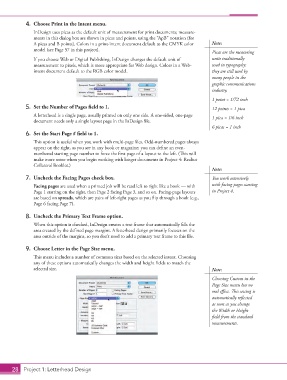
4.  Choose Print in the Intent menu.
                    InDesign uses picas as the default unit of measurement for print documents; measure-
                    ments in this dialog box are shown in picas and points, using the “ApB” notation (for
                    A picas and B points). Colors in a print-intent document default to the CMYK color   Note:
                    model (see Page 57 in this project).                                     Picas are the measuring

                    If you choose Web or Digital Publishing, InDesign changes the default unit of   units traditionally
                    measurement to pixels, which is more appropriate for Web design. Colors in a Web-  used in typography;
                    intent document default to the RGB color model.                          they are still used by
                                                                                             many people in the
                                                                                             graphic communications
                                                                                             industry.
                                                                                             1 point = 1/72 inch
                 5.  Set the Number of Pages field to 1.                                     12 points = 1 pica
                    A letterhead is a single page, usually printed on only one side. A one-sided, one-page   1 pica = 1/6 inch
                    document needs only a single layout page in the InDesign file.
                                                                                             6 picas = 1 inch
                 6.  Set the Start Page # field to 1.
                    This option is useful when you work with multi-page files. Odd-numbered pages always
                    appear on the right, as you see in any book or magazine; you can define an even-
                    numbered starting page number to force the first page of a layout to the left. (This will
                    make more sense when you begin working with longer documents in Project 4: Realtor
                    Collateral Booklet.)
                                                                                             Note:
                 7.  Uncheck the Facing Pages check box.                                     You work extensively
                    Facing pages are used when a printed job will be read left to right like a book — with   with facing pages starting
                    Page 1 starting on the right, then Page 2 facing Page 3, and so on. Facing-page layouts   in Project 4.
                    are based on spreads, which are pairs of left-right pages as you flip through a book (e.g.,
                    Page 6 facing Page 7).

                 8.  Uncheck the Primary Text Frame option.
                    When this option is checked, InDesign creates a text frame that automatically fills the
                    area created by the defined page margins. A letterhead design primarily focuses on the
                    area outside of the margins, so you don’t need to add a primary text frame to this file.

                 9.  Choose Letter in the Page Size menu.
                    This menu includes a number of common sizes based on the selected intent. Choosing
                    any of these options automatically changes the width and height fields to match the
                    selected size.                                                           Note:

                                                                                             Choosing Custom in the
                                                                                             Page Size menu has no
                                                                                             real effect. This setting is
                                                                                             automatically reflected
                                                                                             as soon as you change
                                                                                             the Width or Height
                                                                                             field from the standard
                                                                                             measurements.


           28 Project 1: Letterhead Design

