


Page 59 - CC2018_ID_Look_Inside
P. 59
plACe An externAl text file
              You just learned how to create a text frame and create new text. You can also import
              text that was created in an external word-processing application, which is a common
              situation when creating page-layout jobs (more common, perhaps, than manually
              typing text in a frame). In this exercise, you import text that was saved in a rich-text
              format (RTF) file, which can store type-formatting options as well as the actual text.

                1.  With gcm-letterhead.indd open, make sure nothing is selected in the
                   layout and then choose File>Place.
                   Remember, you can choose Edit>Deselect All, or simply click in an empty area of the
                   workspace to deselect any selected objects.

                2.  Navigate to contact.rtf in the WIP>GCMarket folder. Make sure none of
                   the options are checked at the bottom of the dialog box and click Open.


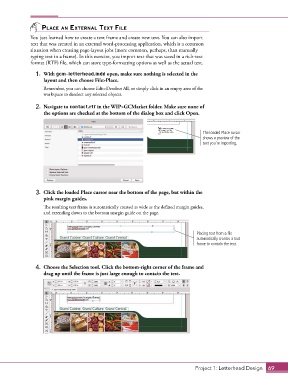
                                                                                     The loaded Place cursor
                                                                                     shows a preview of the
                                                                                     text you’re importing.


                3.  Click the loaded Place cursor near the bottom of the page, but within the
                   pink margin guides.
                   The resulting text frame is automatically created as wide as the defined margin guides,
                   and extending down to the bottom margin guide on the page.


                                                                                  Placing text from a file
                                                                                  automatically creates a text
                                                                                  frame to contain the text.


                4.  Choose the Selection tool. Click the bottom-right corner of the frame and
                   drag up until the frame is just large enough to contain the text.


                                                                                  Project 1: Letterhead Design  69

