


Page 63 - CC2018_ID_Look_Inside
P. 63
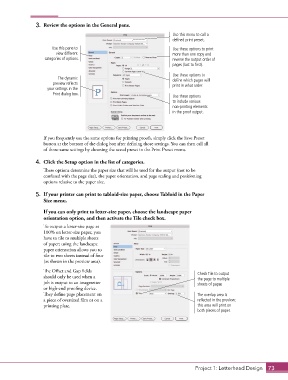
3.  Review the options in the General pane.
                                                                        Use this menu to call a
                                                                        defined print preset.
                      Use this pane to                                  Use these options to print
                        view different                                  more than one copy and
                   categories of options.                               reverse the output order of
                                                                        pages (last to first).

                                                                        Use these options to
                         The dynamic                                    define which pages will
                       preview reflects                                 print in what order.
                     your settings in the
                       Print dialog box.
                                                                        Use these options
                                                                        to include various
                                                                        non-printing elements
                                                                        in the proof output.


                   If you frequently use the same options for printing proofs, simply click the Save Preset
                   button at the bottom of the dialog box after defining those settings. You can then call all
                   of those same settings by choosing the saved preset in the Print Preset menu.

                4.  Click the Setup option in the list of categories.
                   These options determine the paper size that will be used for the output (not to be
                   confused with the page size), the paper orientation, and page scaling and positioning
                   options relative to the paper size.

                5.  If your printer can print to tabloid-size paper, choose Tabloid in the Paper
                   Size menu.

                    If you can only print to letter-size paper, choose the landscape paper
                   orientation option, and then activate the Tile check box.

                   To output a letter-size page at
                   100% on letter-size paper, you
                   have to tile to multiple sheets
                   of paper; using the landscape
                   paper orientation allows you to
                   tile to two sheets instead of four
                   (as shown in the preview area).

                   The Offset and Gap fields                                       Check Tile to output
                   should only be used when a                                      the page to multiple
                   job is output to an imagesetter                                 sheets of paper.
                   or high-end proofing device.
                   They define page placement on                                   The overlap area is
                   a piece of oversized film or on a                               reflected in the preview;
                   printing plate.                                                 this area will print on
                                                                                   both pieces of paper.


                                                                                  Project 1: Letterhead Design  73

