


Page 49 - CC2017_ID_Look_Inside
P. 49
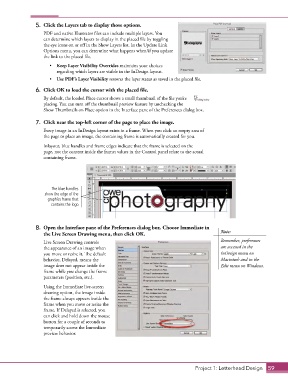
5.  Click the Layers tab to display those options.
                   PDF and native Illustrator files can include multiple layers. You
                   can determine which layers to display in the placed file by toggling
                   the eye icons on or off in the Show Layers list. In the Update Link
                   Options menu, you can determine what happens when/if you update
                   the link to the placed file.
                      •  Keep Layer Visibility Overrides maintains your choices
                        regarding which layers are visible in the InDesign layout.
                      •  Use PDF’s Layer Visibility restores the layer status as saved in the placed file.
                6.  Click OK to load the cursor with the placed file.
                   By default, the loaded Place cursor shows a small thumbnail of the file you’re
                   placing. You can turn off the thumbnail preview feature by unchecking the
                   Show Thumbnails on Place option in the Interface pane of the Preferences dialog box.

                7.  Click near the top-left corner of the page to place the image.
                   Every image in an InDesign layout exists in a frame. When you click an empty area of
                   the page to place an image, the containing frame is automatically created for you.

                   Inlayout, blue handles and frame edges indicate that the frame is selected on the
                   page, not the content inside the frame; values in the Control panel relate to the actual
                   containing frame.


                      The blue handles
                   show the edge of the
                     graphics frame that
                      contains the logo.


                8.  Open the Interface pane of the Preferences dialog box. Choose Immediate in
                   the Live Screen Drawing menu, then click OK.                             Note:

                   Live Screen Drawing controls                                             Remember, preferences
                   the appearance of an image when                                          are accessed in the
                   you move or resize it. The default                                       InDesign menu on
                   behavior, Delayed, means the                                             Macintosh and in the
                   image does not appear inside the                                         Edit menu on Windows.
                   frame while you change the frame
                   parameters (position, etc.).
                   Using the Immediate live-screen
                   drawing option, the image inside
                   the frame always appears inside the
                   frame when you move or resize the
                   frame. If Delayed is selected, you
                   can click and hold down the mouse
                   button for a couple of seconds to
                   temporarily access the Immediate
                   preview behavior.


                                                                                  Project 1: Letterhead Design  59

