


Page 48 - CC2017_ID_Look_Inside
P. 48
Stage 3  Placing External Images


          As you saw in the first stage of this project, InDesign incorporates a number of tools for building
          graphics directly in a layout. Of course, most page-layout projects will include files from other
          sources — logos created in Adobe Illustrator, raster-based images created in Adobe Photoshop, digital
          photographs, stock images, and many other types of files can be incorporated into a larger project.


               PlACe An Adobe illustrAtor File

          Every image in a layout exists in a frame. You can either create the frame first and place
          a file into it, or you can simply place an image and create the containing frame at the
          same time. In this exercise, you are going to place the client’s logo and transform the   Note:
          file to fit into the space to the left of the curved line at the top of the layout.
                                                                                        Artwork in an Illustrator
            1.  With crowe.indd open, make sure nothing is selected in the layout.      file must be entirely
                                                                                        within the bounds of the
            2.  Choose File>Place. Navigate to the WIP>Letterhead folder and select     artboard (page) edge.
               crowe.ai. At the bottom of the dialog box, check Show Import Options.
                                                                                        Anything outside the
                                                                                        artboard edge will not be
                                                                                        included when you place
                                                                                        the file into InDesign.


                                                                                        Note:
                                                                                        When you place a native
                                                                                        Illustrator file, the dialog
                                                                                        box shows Place PDF
                                                                                        options because the PDF
                                                                                        format is the basis of
            3.  Click Open.                                                             Illustrator files that can
                                                                                        be placed into InDesign.
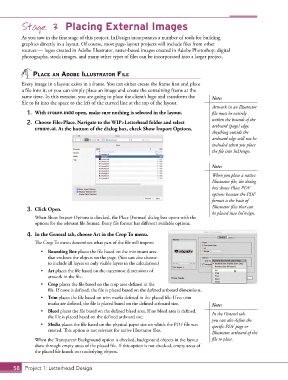
               When Show Import Options is checked, the Place [Format] dialog box opens with the
               options for the relevant file format. Every file format has different available options.

            4.  In the General tab, choose Art in the Crop To menu.
               The Crop To menu determines what part of the file will import:
                  •  Bounding Box places the file based on the minimum area
                     that encloses the objects on the page. (You can also choose
                     to include all layers or only visible layers in the calculation.)
                  •  Art places the file based on the outermost dimensions of
                     artwork in the file.
                  •  Crop places the file based on the crop area defined in the
                     file. If none is defined, the file is placed based on the defined artboard dimensions.
                  •  Trim places the file based on trim marks defined in the placed file. If no trim
                     marks are defined, the file is placed based on the defined artboard size.  Note:
                  •  Bleed places the file based on the defined bleed area. If no bleed area is defined,   In the General tab,
                     the file is placed based on the defined artboard size.
                                                                                        you can also define the
                  •  Media places the file based on the physical paper size on which the PDF file was   specific PDF page or
                     created. This option is not relevant for native Illustrator files.
                                                                                        Illustrator artboard of the
               When the Transparent Background option is checked, background objects in the layout   file to place.
               show through empty areas of the placed file. If this option is not checked, empty areas of
               the placed file knock out underlying objects.


       58 Project 1: Letterhead Design

