


Page 30 - Adobe Indesign CC 2020
P. 30
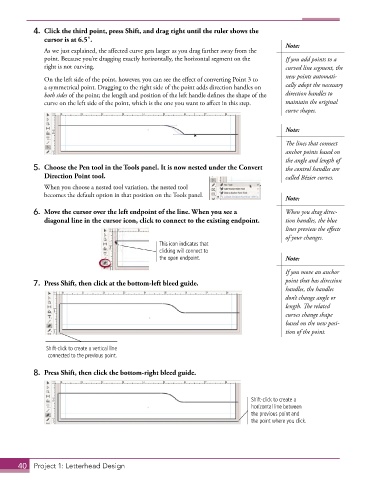
4.  Click the third point, press Shift, and drag right until the ruler shows the
              cursor is at 6.5″.
                                                                                        Note:
               As we just explained, the affected curve gets larger as you drag farther away from the
               point. Because you’re dragging exactly horizontally, the horizontal segment on the   If you add points to a
               right is not curving.                                                    curved line segment, the
                                                                                        new points automati-
               On the left side of the point, however, you can see the effect of converting Point 3 to
               a symmetrical point. Dragging to the right side of the point adds direction handles on   cally adopt the necessary
               both sides of the point; the length and position of the left handle defines the shape of the   direction handles to
               curve on the left side of the point, which is the one you want to affect in this step.  maintain the original
                                                                                        curve shapes.


                                                                                        Note:
                                                                                        The lines that connect
                                                                                        anchor points based on
                                                                                        the angle and length of
           5.  Choose the Pen tool in the Tools panel. It is now nested under the Convert   the control handles are
              Direction Point tool.                                                     called Bézier curves.
               When you choose a nested tool variation, the nested tool
               becomes the default option in that position on the Tools panel.
                                                                                        Note:

           6.  Move the cursor over the left endpoint of the line. When you see a       When you drag direc-
              diagonal line in the cursor icon, click to connect to the existing endpoint.  tion handles, the blue
                                                                                        lines preview the effects
                                                                                        of your changes.
                                                  This icon indicates that
                                                  clicking will connect to
                                                  the open endpoint.                    Note:

                                                                                        If you move an anchor
           7.  Press Shift, then click at the bottom-left bleed guide.                  point that has direction
                                                                                        handles, the handles
                                                                                        don’t change angle or
                                                                                        length. The related
                                                                                        curves change shape
                                                                                        based on the new posi-
                                                                                        tion of the point.


               Shift-click to create a vertical line
                connected to the previous point.

           8.  Press Shift, then click the bottom-right bleed guide.


                                                                              Shift-click to create a
                                                                              horizontal line between
                                                                              the previous point and
                                                                              the point where you click.


       40  Project 1: Letterhead Design

