


Page 37 - CS6_AI_Look_Inside.pdf
P. 37
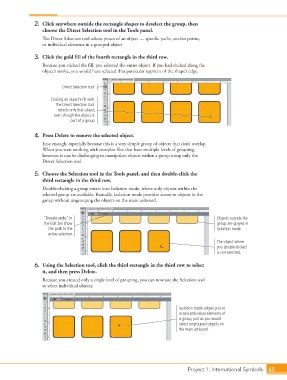
2.  Click anywhere outside the rectangle shapes to deselect the group, then
                        choose the Direct Selection tool in the Tools panel.
                        The Direct Selection tool selects pieces of an object — specific paths, anchor points,
                        or individual elements in a grouped object.

                    3.  Click the gold fill of the fourth rectangle in the third row.
                        Because you clicked the fill, you selected the entire object. If you had clicked along the
                        object’s stroke, you would have selected that particular segment of the shape’s edge.


                                Direct Selection tool

                           Clicking an object’s fill with
                             the Direct Selection tool
                              selects only that object,
                             even though the object is
                                   part of a group.

                    4.  Press Delete to remove the selected object.
                        Easy enough, especially because this is a very simple group of objects that don’t overlap.
                        When you start working with complex files that have multiple levels of grouping,
                        however, it can be challenging to manipulate objects within a group using only the
                        Direct Selection tool.

                    5.  Choose the Selection tool in the Tools panel, and then double-click the
                        third rectangle in the third row.
                        Double-clicking a group enters into Isolation mode, where only objects within the
                        selected group are available. Basically, Isolation mode provides access to objects in the
                        group without ungrouping the objects on the main artboard.


                        “Breadcrumbs” in                                                       Objects outside the
                         the Edit bar show                                                     group are grayed in
                          the path to the                                                      Isolation mode.
                          active selection.
                                                                                               The object where
                                                                                               you double-clicked
                                                                                               is not selected.

                    6.  Using the Selection tool, click the third rectangle in the third row to select
                        it, and then press Delete.
                        Because you created only a single level of grouping, you can now use the Selection tool
                        to select individual objects.


                                                                                Isolation mode allows you to
                                                                                access individual elements of
                                                                                a group, just as you would
                                                                                select ungrouped objects on
                                                                                the main artboard.


                                                                                   Project 1: International Symbols  45

