


Page 59 - CC2018_AI_Look_Inside
P. 59
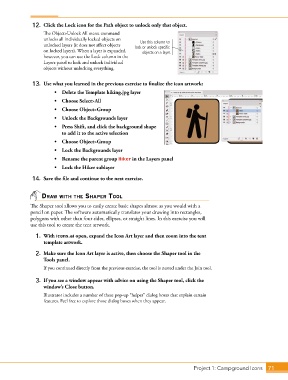
12.  Click the Lock icon for the Path object to unlock only that object.
                   The Object>Unlock All menu command
                   unlocks all individually locked objects on   Use this column to
                   unlocked layers (it does not affect objects   lock or unlock specific
                   on locked layers). When a layer is expanded,   objects on a layer.
                   however, you can use the Lock column in the
                   Layers panel to lock and unlock individual
                   objects without unlocking everything.


               13.  Use what you learned in the previous exercise to finalize the icon artwork:
                       •    Delete the Template hiking.jpg layer
                       •   Choose Select>All
                       •   Choose Object>Group

                       •    Unlock the Backgrounds layer
                       •     Press Shift, and click the background shape
                           to add it to the active selection
                       •   Choose Object>Group
                       •    Lock the Backgrounds layer
                       •    Rename the parent group Hiker in the Layers panel
                       •    Lock the Hiker sublayer

               14.  Save the file and continue to the next exercise.


                  draW WIth thE shapEr tool
              The Shaper tool allows you to easily create basic shapes almost as you would with a
              pencil on paper. The software automatically translates your drawing into rectangles,
              polygons with other than four sides, ellipses, or straight lines. In this exercise you will
              use this tool to create the tent artwork.

                1.  With icons.ai open, expand the Icon Art layer and then zoom into the tent
                   template artwork.
                2.  Make sure the Icon Art layer is active, then choose the Shaper tool in the
                   Tools panel.
                   If you continued directly from the previous exercise, the tool is nested under the Join tool.

                3.  If you see a window appear with advice on using the Shaper tool, click the
                   window’s Close button.
                   Illustrator includes a number of these pop-up “helper” dialog boxes that explain certain
                   features. Feel free to explore those dialog boxes when they appear.


                                                                                 Project 1: Campground Icons    71

