


Page 61 - CC2018_AI_Look_Inside
P. 61
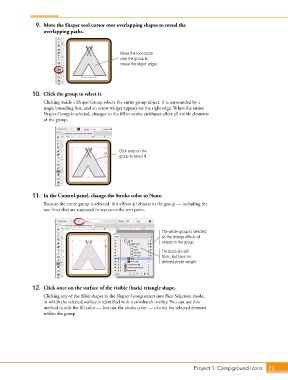
9.  Move the Shaper tool cursor over overlapping shapes to reveal the
                   overlapping paths.


                                                   Move the tool cursor
                                                   over the group to
                                                   reveal the object edges.


               10.  Click the group to select it.

                   Clicking inside a Shaper Group selects the entire group object. It is surrounded by a
                   single bounding box, and an arrow widget appears on the right edge. When the entire
                   Shaper Group is selected, changes to the fill or stroke attributes affect all visible elements
                   of the group.


                                                  Click once on the
                                                  group to select it.


               11.  In the Control panel, change the Stroke color to None.
                   Because the entire group is selected, this affects all objects in the group — including the
                   two lines that are supposed to represent the tent poles.


                                                                    The whole group is selected,
                                                                    so the change affects all
                                                                    objects in the group.
                                                                    The Lines are still
                                                                    there, but have no
                                                                    defined stroke weight.


               12.  Click once on the surface of the visible (back) triangle shape.

                   Clicking any of the filled shapes in the Shaper Group enters into Face Selection mode,
                   in which the selected surface is identified with a crosshatch overlay. You can use this
                   method to edit the fill color — but not the stroke color — of only the selected element
                   within the group.


                                                                                 Project 1: Campground Icons    73

