


Page 61 - CC2017_AI_Look_Inside
P. 61
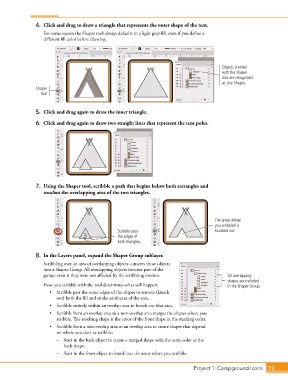
4.  Click and drag to draw a triangle that represents the outer shape of the tent.
                   For some reason the Shaper tool always defaults to a light gray fill, even if you define a
                   different fill color before drawing.


                                                                                             Objects created
                                                                                             with the Shaper
                                                                                             tool are recognized
                                                                                             as Live Shapes.
                Shaper
                  tool


                5.  Click and drag again to draw the inner triangle.

                6.  Click and drag again to draw two straight lines that represent the tent poles.


                7.  Using the Shaper tool, scribble a path that begins below both rectangles and
                   touches the overlapping area of the two triangles.


                                                                                          The areas where
                                                                                          you scribbled is
                                                  Scribble past                           knocked out.
                                                  the edges of
                                                  both triangles.

                8.  In the Layers panel, expand the Shaper Group sublayer.
                   Scribbling over an area of overlapping objects converts those objects
                   into a Shaper Group. All overlapping objects become part of the
                   group, even it they were not affected by the scribbling motion.             All overlapping
                                                                                               shapes are included
                   How you scribble with the tool determines what will happen:                 in the Shaper Group.
                      •  Scribble past the outer edges of the shapes to remove (knock
                        out) both the fill and stroke attributes of the area.
                      •  Scribble entirely within an overlap area to knock out that area.
                      •  Scribble from an overlap area to a non-overlap area merges the shapes where you
                        scribble. The resulting shape is the color of the front shape in the stacking order.
                      •  Scribble from a non-overlap area to an overlap area to create shapes that depend
                        on where you start to scribble:
                        –  Start in the back object to create a merged shape with the same color as the
                           back shape.
                        –  Start in the front object to knock out the areas where you scribble.


                                                                                 Project 1: Campground Icons    73

