


Page 57 - CC2017_AI_Look_Inside
P. 57
exPlore Artwork outlines
              As you develop complex artwork, it can be helpful to view the basic artwork structure
              without applied fill and stroke attributes. Illustrator’s Outline mode makes this possible.

                1.  With icons.ai open, deselect everything in the file.

                2.  Choose View>Outline.
                   Regardless of the defined stroke weight, lines are still just lines. Outline mode shows you
                   a wireframe of your artwork; fill and stroke attributes are not visible.


                                                                                            Note:
                                                              In Outline mode,
                                                              you can’t see the             By default, objects on
                                                              objects’ fill or              template layers remain
                                                              stroke attributes.
                                                                                            visible in outline mode.
                                                                                            You can convert a
                                                                                            template layer to outlines
                                                                                            by Command/Control-
                                                                                            clicking the template
                                                                                            layer icon.


                3.  Choose the Join tool in the Tools panel (nested under the Shaper tool).
                   The Join tool is an easy way to connect open line segments.


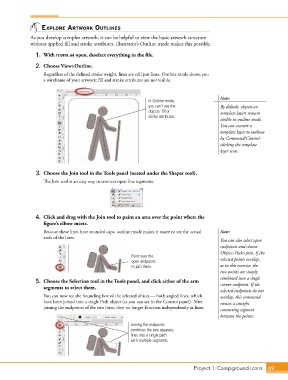
                4.  Click and drag with the Join tool to paint an area over the point where the
                   figure’s elbow meets.
                   Because these lines have rounded caps, outline mode makes it easier to see the actual   Note:
                   ends of the lines.
                                                                                            You can also select open
                                                                                            endpoints and choose
                                                                                            Object>Path>Join. If the
                                                       Paint over the
                                                       open endpoints                       selected points overlap,
                                                       to join them.                        as in this exercise, the
                                                                                            two points are simply
                                                                                            combined into a single
                5.  Choose the Selection tool in the Tools panel, and click either of the arm   corner endpoint. If the
                   segments to select them.
                                                                                            selected endpoints do not
                   You can now see the bounding box of the selected object — both angled lines, which   overlap, this command
                   have been joined into a single Path object (as you can see in the Control panel). After   creates a straight
                   joining the endpoints of the two lines, they no longer function independently as lines.
                                                                                            connecting segment
                                                                                            between the points.
                                                       Joining the endpoints
                                                       combines the two separate
                                                       lines into a single path
                                                       with multiple segments.


                                                                                 Project 1: Campground Icons    69

