


Page 65 - CC2017_AI_Look_Inside
P. 65
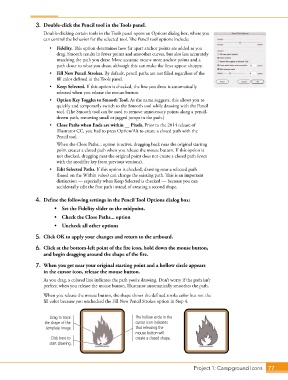
3.  Double-click the Pencil tool in the Tools panel.
                   Double-clicking certain tools in the Tools panel opens an Options dialog box, where you
                   can control the behavior for the selected tool. The Pencil tool options include:

                      •  Fidelity. This option determines how far apart anchor points are added as you
                        drag. Smooth results in fewer points and smoother curves, but also less accurately
                        matching the path you draw. More accurate means more anchor points and a
                        path closer to what you draw, although this can make the lines appear choppy.
                      •  Fill New Pencil Strokes. By default, pencil paths are not filled regardless of the
                        fill color defined in the Tools panel.
                      •  Keep Selected. If this option is checked, the line you draw is automatically
                        selected when you release the mouse button.
                      •  Option Key Toggles to Smooth Tool. As the name suggests, this allows you to
                        quickly and temporarily switch to the Smooth tool while drawing with the Pencil
                        tool. (The Smooth tool can be used to remove unnecessary points along a pencil-
                        drawn path, removing small or jagged jumps in the path.)
                      •  Close Paths when Ends are within __ Pixels. Prior to the 2014 release of
                        Illustrator CC, you had to press Option/Alt to create a closed path with the
                        Pencil tool.
                         When the Close Paths... option is active, dragging back near the original starting
                        point creates a closed path when you release the mouse button. If this option is
                        not checked, dragging near the original point does not create a closed path (even
                        with the modifier key from previous versions).
                      •  Edit Selected Paths. If this option is checked, drawing near a selected path
                        (based on the Within value) can change the existing path. This is an important
                        distinction — especially when Keep Selected is checked — because you can
                        accidentally edit the first path instead of creating a second shape.


                4.  Define the following settings in the Pencil Tool Options dialog box:
                       •    Set the Fidelity slider to the midpoint.
                       •    Check the Close Paths... option
                       •    Uncheck all other options

                5.  Click OK to apply your changes and return to the artboard.

                6.  Click at the bottom-left point of the fire icon, hold down the mouse button,
                   and begin dragging around the shape of the fire.

                7.  When you get near your original starting point and a hollow circle appears
                   in the cursor icon, release the mouse button.
                   As you drag, a colored line indicates the path you’re drawing. Don’t worry if the path isn’t
                   perfect; when you release the mouse button, Illustrator automatically smoothes the path.
                   When you release the mouse button, the shape shows the defined stroke color but not the
                   fill color because you unchecked the Fill New Pencil Strokes option in Step 4.


                      Drag to trace                      The hollow circle in the
                   the shape of the                      cursor icon indicates
                    template image.                      that releasing the
                                                         mouse button will
                      Click here to                      create a closed shape.
                     start drawing.


                                                                                 Project 1: Campground Icons    77

