


Page 30 - CC2017_AI_Look_Inside
P. 30
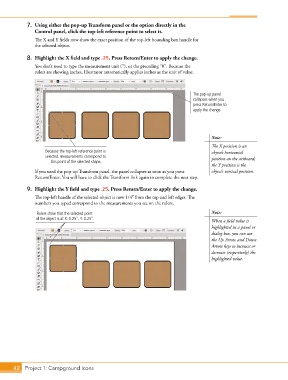
7. Using either the pop-up Transform panel or the option directly in the
Control panel, click the top-left reference point to select it.
The X and Y fields now show the exact position of the top-left bounding box handle for
the selected object.
8. Highlight the X field and type .25. Press Return/Enter to apply the change.
You don’t need to type the measurement unit (3), or the preceding “0”. Because the
rulers are showing inches, Illustrator automatically applies inches as the unit of value.
The pop-up panel
collapses when you
press Return/Enter to
apply the change.
Note:
The X position is an
Because the top-left reference point is object’s horizontal
selected, measurements correspond to position on the artboard;
this point of the selected shape.
the Y position is the
If you used the pop-up Transform panel, the panel collapses as soon as you press object’s vertical position.
Return/Enter. You will have to click the Transform link again to complete the next step.
9. Highlight the Y field and type .25. Press Return/Enter to apply the change.
The top-left handle of the selected object is now 1/4 from the top and left edges. The
numbers you typed correspond to the measurements you see on the rulers.
Rulers show that the selected point Note:
of the object is at X: 0.25”, Y: 0.25”.
When a field value is
highlighted in a panel or
dialog box, you can use
the Up Arrow and Down
Arrow keys to increase or
decrease (respectively) the
highlighted value.
42 Project 1: Campground Icons

