


Page 29 - CC2017_AI_Look_Inside
P. 29
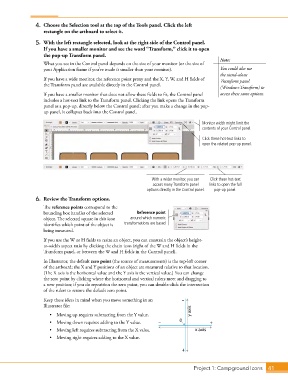
4.  Choose the Selection tool at the top of the Tools panel. Click the left
                   rectangle on the artboard to select it.

                5.  With the left rectangle selected, look at the right side of the Control panel.
                   If you have a smaller monitor and see the word “Transform,” click it to open
                   the pop-up Transform panel.
                                                                                            Note:
                   What you see in the Control panel depends on the size of your monitor (or the size of
                   your Application frame if you’ve made it smaller than your monitor).     You could also use
                                                                                            the stand-alone
                   If you have a wide monitor, the reference point proxy and the X, Y, W, and H fields of   Transform panel
                   the Transform panel are available directly in the Control panel.
                                                                                            (Window>Transform) to
                   If you have a smaller monitor that does not allow these fields to fit, the Control panel   access these same options.
                   includes a hot-text link to the Transform panel. Clicking the link opens the Transform
                   panel as a pop-up, directly below the Control panel; after you make a change in the pop-
                   up panel, it collapses back into the Control panel.

                                                                                    Monitor width might limit the
                                                                                    contents of your Control panel.

                                                                                    Click these hot-text links to
                                                                                    open the related pop-up panel.


                                                                With a wider monitor, you can   Click these hot-text
                                                                access many Transform panel   links to open the full
                                                              options directly in the Control panel.  pop-up panel.
                6.  Review the Transform options.

                   The reference points correspond to the
                   bounding box handles of the selected   Reference point
                   object. The selected square in this icon   around which numeric
                   identifies which point of the object is   transformations are based
                   being measured.
                   If you use the W or H fields to resize an object, you can constrain the object’s height-
                   to-width aspect ratio by clicking the chain icon (right of the W and H fields in the
                   Transform panel, or between the W and H fields in the Control panel).
                   In Illustrator, the default zero point (the source of measurements) is the top-left corner
                   of the artboard; the X and Y positions of an object are measured relative to that location.
                   (The X axis is the horizontal value and the Y axis is the vertical value.) You can change
                   the zero point by clicking where the horizontal and vertical rulers meet and dragging to
                   a new position; if you do reposition the zero point, you can double-click the intersection
                   of the rulers to restore the default zero point.
                   Keep these ideas in mind when you move something in an   –
                   Illustrator file:
                      •  Moving up requires subtracting from the Y value.       y axis
                      •  Moving down requires adding to the Y value.  –    0            +
                      •  Moving left requires subtracting from the X value.       x axis
                      •  Moving right requires adding to the X value.

                                                                            +


                                                                                 Project 1: Campground Icons    41

