


Page 34 - CC2017_AI_Look_Inside
P. 34
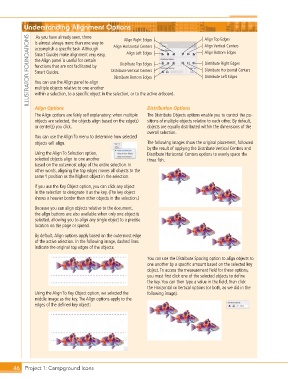
Understanding Alignment Options                                           Align Top Edges

                As you have already seen, there
             ILLUSTRATOR FOUNDATIONS  Smart Guides make alignment very easy,   Distribute Vertical Centers  Align Bottom Edges
                                                    Align Right Edges
               is almost always more than one way to
                                                                                     Align Vertical Centers
                                                Align Horizontal Centers
               accomplish a specific task. Although
                                                     Align Left Edges
               the Align panel is useful for certain
                                                                                     Distribute Right Edges
                                                  Distribute Top Edges
               functions that are not facilitated by
                                                                                     Distribute Horizontal Centers
               Smart Guides.
                                                                                     Distribute Left Edges
                                                Distribute Bottom Edges
               You can use the Align panel to align
               multiple objects relative to one another
               within a selection, to a specific object in the selection, or to the active artboard.
               Align Options                                  Distribution Options
               The Align options are fairly self explanatory; when multiple   The Distribute Objects options enable you to control the po-
               objects are selected, the objects align based on the edge(s)   sitions of multiple objects relative to each other. By default,
               or center(s) you click.                        objects are equally distributed within the dimensions of the
                                                              overall selection.
               You can use the Align To menu to determine how selected
               objects will align.                            The following images show the original placement, followed
                                                              by the result of applying the Distribute Vertical Centers and
               Using the Align To Selection option,           Distribute Horizontal Centers options to evenly space the
               selected objects align to one another          three fish.
               based on the outermost edge of the entire selection. In
               other words, aligning the top edges moves all objects to the
               same Y position as the highest object in the selection.
               If you use the Key Object option, you can click any object
               in the selection to designate it as the key. (The key object
               shows a heavier border than other objects in the selection.)

               Because you can align objects relative to the document,
               the align buttons are also available when only one object is
               selected, allowing you to align any single object to a precise
               location on the page or spread.

               By default, Align options apply based on the outermost edge
               of the active selection. In the following image, dashed lines
               indicate the original top edges of the objects:

                                                              You can use the Distribute Spacing option to align objects to
                                                              one another by a specific amount based on the selected key
                                                              object. To access the measurement field for these options,
                                                              you must first click one of the selected objects to define
                                                              the key. You can then type a value in the field, then click
                                                              the Horizontal or Vertical options (or both, as we did in the
               Using the Align To Key Object option, we selected the   following image).
               middle image as the key. The Align options apply to the
               edges of the defined key object:


       46 Project 1: Campground Icons

