


Page 21 - Adobe Dream Viewer 2021
P. 21
Changing the Update Preferences

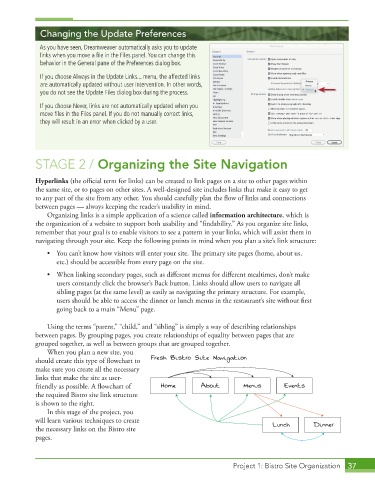
             As you have seen, Dreamweaver automatically asks you to update
             links when you move a fi le in the Files panel. You can change this
             behavior in the General pane of the Preferences dialog box.

             If you choose Always in the Update Links... menu, the affected links
             are automatically updated without user intervention. In other words,
             you do not see the Update Files dialog box during the process.
             If you choose Never, links are not automatically updated when you
             move fi les in the Files panel. If you do not manually correct links,
             they will result in an error when clicked by a user.


              STAGE 2 / Organizing the Site Navigation


            Hyperlinks (the official term for links) can be created to link pages on a site to other pages within
            the same site, or to pages on other sites. A well-designed site includes links that make it easy to get
            to any part of the site from any other. You should carefully plan the flow of links and connections

            between pages — always keeping the reader’s usability in mind.
               Organizing links is a simple application of a science called information architecture, which is
            the organization of a website to support both usability and “findability.” As you organize site links,

            remember that your goal is to enable visitors to see a pattern in your links, which will assist them in
            navigating through your site. Keep the following points in mind when you plan a site’s link structure:

               •  You can’t know how visitors will enter your site. The primary site pages (home, about us,
                  etc.) should be accessible from every page on the site.
               •  When linking secondary pages, such as different menus for different mealtimes, don’t make


                  users constantly click the browser’s Back button. Links should allow users to navigate all
                  sibling pages (at the same level) as easily as navigating the primary structure. For example,
                  users should be able to access the dinner or lunch menus in the restaurant’s site without first

                  going back to a main “Menu” page.

               Using the terms “parent,” “child,” and “sibling” is simply a way of describing relationships
            between pages. By grouping pages, you create relationships of equality between pages that are
            grouped together, as well as between groups that are grouped together.
               When you plan a new site, you

            should create this type of flowchart to   Fresh Bistro Site Navigation
            make sure you create all the necessary
            links that make the site as user-

            friendly as possible. A flowchart of   Home       About        Menus        Events
            the required Bistro site link structure
            is shown to the right.
               In this stage of the project, you
            will learn various techniques to create
            the necessary links on the Bistro site                                  Lunch       Dinner
            pages.


                                                                        Project 1: Bistro Site Organization  37

