


Page 23 - Adobe Dream Viewer 2021
P. 23
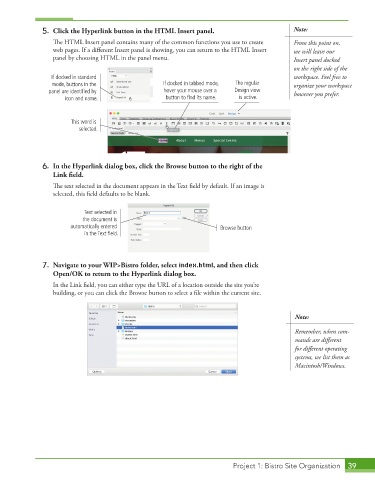
5.  Click the Hyperlink button in the HTML Insert panel.                     Note:
                 The HTML Insert panel contains many of the common functions you use to create   From this point on,
                 web pages. If a different Insert panel is showing, you can return to the HTML Insert   we will leave our
                 panel by choosing HTML in the panel menu.                                 Insert panel docked
                                                                                           on the right side of the
                 If docked in standard                                                     workspace. Feel free to
                 mode, buttons in the              If docked in tabbed mode,   The regular   organize your workspace
                panel are identified by            hover your mouse over a   Design view   however you prefer.
                     icon and name.                 button to find its name.  is active.


                       This word is
                         selected.


              6.  In the Hyperlink dialog box, click the Browse button to the right of the
                 Link field.

                 The text selected in the document appears in the Text field by default. If an image is
                 selected, this field defaults to be blank.


                           Text selected in
                          the document is
                       automatically entered                        Browse button
                           in the Text field.


              7.  Navigate to your WIP>Bistro folder, select index.html, and then click
                 Open/OK to return to the Hyperlink dialog box.

                 In the Link field, you can either type the URL of a location outside the site you’re
                 building, or you can click the Browse button to select a file within the current site.


                                                                                           Note:
                                                                                           Remember, when com-
                                                                                           mands are different
                                                                                           for different operating
                                                                                           systems, we list them as
                                                                                           Macintosh/Windows.


                                                                        Project 1: Bistro Site Organization  39

