


Page 19 - Adobe Dream Viewer 2021
P. 19
3.  When prompted, click Update to update the affected pages with the new
                 location for the burger.jpg image file.
                 When a browser downloads a web page, it reads
                 the page code, requests the image files from the
                 defined locations, and then displays the images
                 within the page. You should understand that
                 images in web pages are not embedded; they are
                 merged into the page by the browser.

                 Files being updated do not need to be open for Dreamweaver to change the required
                 link information. If pages are open, links in those pages are updated, but the changes
                 are not automatically saved — you have to manually save each open file to make the   Note:
                 updates permanent.
                                                                                           To avoid potential
                 If you choose Don’t Update in the Update Links dialog box, the image will not appear   problems if you acciden-
                 in the page that calls for that file. If you had moved the image file using Windows
                 Explorer or the Macintosh Finder, Dreamweaver would not have been aware of the   tally close a file without
                 movement, and you would not have had the opportunity to adjust the path to the   saving, you might want
                 image file in pages that link to that image.                              to close open files before
                                                                                           moving or renaming
                 The burger.jpg file is now stored in the main images folder. When you move files into   files in the Files panel.
                 a folder, that folder automatically expands in the Files panel.


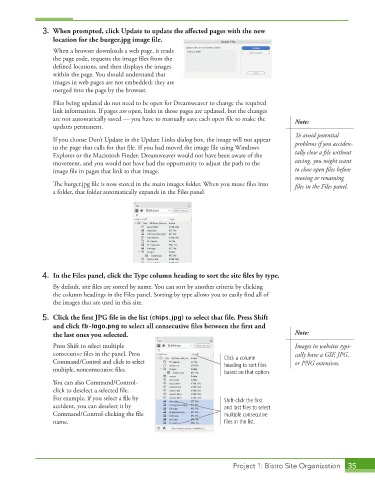
              4.  In the Files panel, click the Type column heading to sort the site files by type.
                 By default, site files are sorted by name. You can sort by another criteria by clicking
                 the column headings in the Files panel. Sorting by type allows you to easily find all of
                 the images that are used in this site.

              5.  Click the first JPG file in the list (chips.jpg) to select that file. Press Shift
                 and click fb-logo.png to select all consecutive files between the first and
                 the last ones you selected.                                               Note:
                 Press Shift to select multiple                                            Images in websites typi-
                 consecutive files in the panel. Press                                     cally have a GIF, JPG,
                 Command/Control and click to select                 Click a column        or PNG extension.
                                                                     heading to sort files
                 multiple, nonconsecutive files.                     based on that option.
                 You can also Command/Control-
                 click to deselect a selected file.
                 For example, if you select a file by                Shift-click the first
                 accident, you can deselect it by                    and last files to select
                 Command/Control-clicking the file                   multiple consecutive
                 name.                                               files in the list.


                                                                        Project 1: Bistro Site Organization  35

