


Page 17 - Adobe Dream Viewer 2021
P. 17
Plan Folder Organization
            When all files are dumped into the main site folder, it can be challenging to manage
            your work. A well-organized site is an easy-to-manage site. Ideally, organization
            occurs before the site is constructed, but Dreamweaver makes it easy to reorganize
            files and folders at any point in the process.
               There are no absolute rules to follow for organizing files and folders, other than
            the general principle of keeping related components together, so you know where to
            find certain files when you need them.

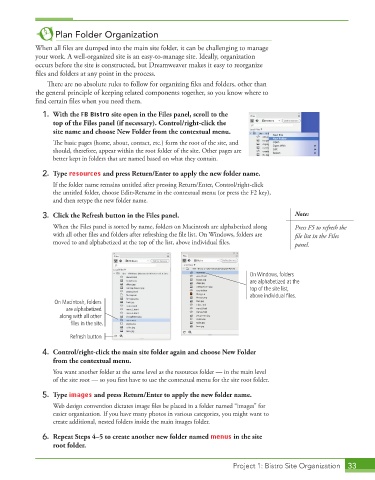
              1.  With the FB Bistro site open in the Files panel, scroll to the
                 top of the Files panel (if necessary). Control/right-click the
                 site name and choose New Folder from the contextual menu.
                 The basic pages (home, about, contact, etc.) form the root of the site, and
                 should, therefore, appear within the root folder of the site. Other pages are
                 better kept in folders that are named based on what they contain.

              2.  Type resources and press Return/Enter to apply the new folder name.
                 If the folder name remains untitled after pressing Return/Enter, Control/right-click
                 the untitled folder, choose Edit>Rename in the contextual menu (or press the F2 key),
                 and then retype the new folder name.

              3.  Click the Refresh button in the Files panel.                             Note:
                 When the Files panel is sorted by name, folders on Macintosh are alphabetized along   Press F5 to refresh the
                 with all other files and folders after refreshing the file list. On Windows, folders are   file list in the Files
                 moved to and alphabetized at the top of the list, above individual files.   panel.


                                                                             On Windows, folders
                                                                             are alphabetized at the
                                                                             top of the site list,
                                                                             above individual files.
                  On Macintosh, folders
                     are alphabetized
                   along with all other
                       files in the site.

                      Refresh button
              4.  Control/right-click the main site folder again and choose New Folder
                 from the contextual menu.
                 You want another folder at the same level as the resources folder — in the main level
                 of the site root — so you first have to use the contextual menu for the site root folder.
              5.  Type images and press Return/Enter to apply the new folder name.
                 Web design convention dictates image files be placed in a folder named “images” for
                 easier organization. If you have many photos in various categories, you might want to
                 create additional, nested folders inside the main images folder.
              6.  Repeat Steps 4–5 to create another new folder named menus in the site
                 root folder.


                                                                        Project 1: Bistro Site Organization  33

