


Page 42 - CC2018_DW_Look_Inside
P. 42
export And remove the site definition
          To reduce the potential for confusion, it’s a good idea to remove the defined sites of
          completed projects, leaving only the defined sites of current projects.
              As stated in the Interface chapter, removing a site from Dreamweaver does not
          delete the actual files and folders from your computer; it simply removes them from
          Dreamweaver. Rather than removing a site, however, you can export a site definition
          file — which you can later import to restore the same settings and options you already   Note:
          defined (as you did in the Interface chapter when you imported the sf-arts site).
              As you work through the projects in this book, you will export and remove site   You can also cloak
                                                                                        a specific file by
          definitions for completed projects, so your site list remains manageable. You should get   Control/right clicking
          into this habit so you can quickly reinstate site definitions if necessary.
                                                                                        that file in the Files
            1.  With the Kinetic site open in the Files panel, choose Manage Sites at the   panel and choosing
               bottom of the Directory menu.                                            Cloaking>Cloak.
               You can access this menu even when the Files panel is in expanded mode.


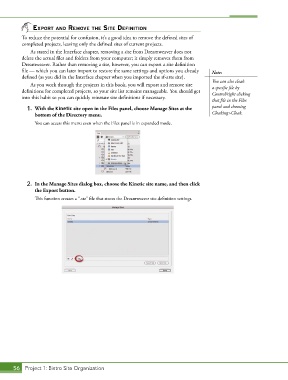
            2.  In the Manage Sites dialog box, choose the Kinetic site name, and then click
               the Export button.
               This function creates a “.ste” file that stores the Dreamweaver site definition settings.


       56 Project 1: Bistro Site Organization

