


Page 43 - CC2018_DW_Look_Inside
P. 43
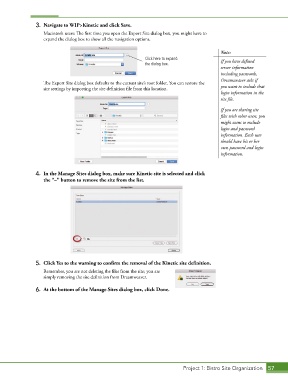
3.  Navigate to WIP>Kinetic and click Save.
                   Macintosh users: The first time you open the Export Site dialog box, you might have to
                   expand the dialog box to show all the navigation options.


                                                                                            Note:
                                                             Click here to expand           If you have defined
                                                             the dialog box.
                                                                                            server information
                                                                                            including passwords,
                                                                                            Dreamweaver asks if
                   The Export Site dialog box defaults to the current site’s root folder. You can restore the
                   site settings by importing the site definition file from this location.  you want to include that
                                                                                            login information in the
                                                                                            site file.

                                                                                            If you are sharing site
                                                                                            files with other users, you
                                                                                            might want to exclude
                                                                                            login and password
                                                                                            information. Each user
                                                                                            should have his or her
                                                                                            own password and login
                                                                                            information.


                4.  In the Manage Sites dialog box, make sure Kinetic site is selected and click
                   the “–” button to remove the site from the list.


                5.  Click Yes to the warning to confirm the removal of the Kinetic site definition.
                   Remember, you are not deleting the files from the site; you are
                   simply removing the site definition from Dreamweaver.

                6.  At the bottom of the Manage Sites dialog box, click Done.


                                                                             Project 1: Bistro Site Organization  57

