


Page 38 - CC2018_DW_Look_Inside
P. 38
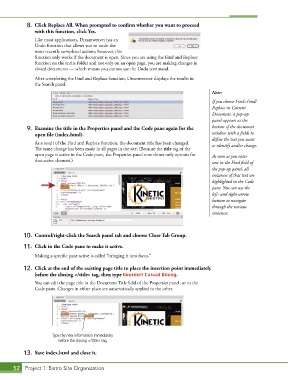
8.  Click Replace All. When prompted to confirm whether you want to proceed
               with this function, click Yes.

               Like most applications, Dreamweaver has an
               Undo function that allows you to undo the
               most recently completed actions; however, this
               function only works if the document is open. Since you are using the Find and Replace
               function on the entire folder and not only on an open page, you are making changes in
               closed documents — which means you cannot use the Undo command.
               After completing the Find and Replace function, Dreamweaver displays the results in
               the Search panel.
                                                                                        Note:
                                                                                        If you choose Find>Find/
                                                                                        Replace in Current
                                                                                        Document, a pop-up
                                                                                        panel appears at the
            9.  Examine the title in the Properties panel and the Code pane again for the   bottom of the document
               open file (index.html).                                                  window with a fields to
                                                                                        define the text you want
               As a result of the Find and Replace function, the document title has been changed.    to identify and/or change.
               The same change has been made in all pages in the site. (Because the title tag of the
               open page is active in the Code pane, the Properties panel now shows only options for   As soon as you enter
               that active element.)
                                                                                        text in the Find field of
                                                                                        the pop-up panel, all
                                                                                        instances of that text are
                                                                                        highlighted in the Code
                                                                                        pane. You can use the
                                                                                        left- and right-arrow
                                                                                        buttons to navigate
                                                                                        through the various
                                                                                        instances.


           10.  Control/right-click the Search panel tab and choose Close Tab Group.

           11.  Click in the Code pane to make it active.
               Making a specific pane active is called “bringing it into focus.”

           12.  Click at the end of the existing page title to place the insertion point immediately
               before the closing </title> tag, then type Gourmet Casual Dining.
               You can edit the page title in the Document Title field of the Properties panel, or in the
               Code pane. Changes in either place are automatically applied to the other.


                       Type the new information immediately
                         before the closing </title> tag.

           13.  Save index.html and close it.


       52 Project 1: Bistro Site Organization

