


Page 22 - CC2017_DW_Look_Inside
P. 22
CreAte hyPerlinks within the site
          Dreamweaver offers a number of options for creating the necessary links for any Web
          site structure.

              •  Hyperlink Button in the HTML Insert Panel. Clicking the Hyperlink
                button in the HTML Insert panel opens the Hyperlink dialog box, where you
                define the specific parameters of the link.                             Note:

              •  Insert>Hyperlink menu. This menu command opens the same dialog box     Dreamweaver often
                that you see when you click the Hyperlink button in the Insert panel.   includes several different
                                                                                        ways to achieve the same
              •  Properties Panel Fields. You can also simply define the specifics of a hyperlink   result. You should use
                in the Properties panel. This method offers the same options as those in the   the method that is most
                Hyperlink dialog box but does not require the dialog box interface.     efficient at the time.
              •  Point to File button in the Properties panel. To create a link using this
                method, simply click the Point to File button, hold down the mouse button,
                and drag to a file in the Files panel; Dreamweaver automatically creates a link.
              •  Browse for File button in the Properties panel. The Browse for File button
                opens a navigation dialog box where you can select the file that will open when
                a user clicks on the link.

              •  Shift-Drag Method. You can create a link directly from the document window
                by pressing Shift and then clicking and dragging from the link source to the
                destination page in the Files panel. (This method only works for text; you can’t
                Shift-drag to create a link for an image.)
              •  Quick Property Inspector in Live View. When the Live view is active, you
                can use the Link button in the Quick Property Inspector, which appears
                attached to the selected item in the document window, to create a hyperlink.


            1.  With the Kinetic site open in the Files panel, open index.html. Make sure
               the Live view is not active.

            2.  At the top of the page, double-click the word “HOME” to select it.

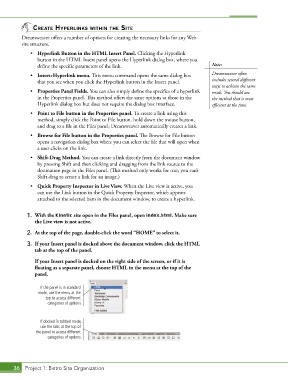
            3.  If your Insert panel is docked above the document window, click the HTML
               tab at the top of the panel.
                 If your Insert panel is docked on the right side of the screen, or if it is
               floating as a separate panel, choose HTML in the menu at the top of the
               panel.

                  If the panel is in standard
                 mode, use the menu at the
                    top to access different
                     categories of options.


                  If docked in tabbed mode,
                  use the tabs at the top of
                the panel to access different
                     categories of options.


       36 Project 1: Bistro Site Organization

