


Page 26 - CS6_GD_Look_Inside.pdf
P. 26
Selection Basics                               Curve handle controls

                    Most Illustrator objects (including shapes like rounded-
                  ILLUSTRATOR FOUNDATIONS  heart of vector graphics. Fortunately, you don’t need to   the shape of the path
                                                                 Path (line) segment
                    corner rectangles) contain two basic building blocks:
                    anchor points and paths. These building blocks are the
                    worry about the geometric specifics of vectors because
                                                                     Anchor point
                    Illustrator manages them for you — but you do need
                    to understand the basic concept of how Illustrator
                    works with anchor points and paths. You should also
                    understand how to access those building blocks so you
                    can do more than create basic shapes.

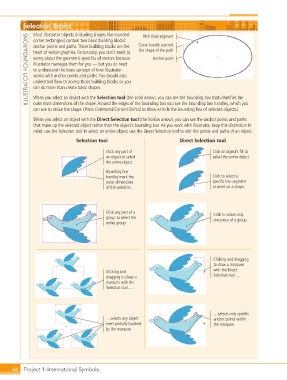
                    When you select an object with the Selection tool (the solid arrow), you can see the bounding box that identifies the
                    outermost dimensions of the shape. Around the edges of the bounding box you see the bounding box handles, which you
                    can use to resize the shape. (Press Command/Control-Shift-B to show or hide the bounding box of selected objects.)
                    When you select an object with the Direct Selection tool (the hollow arrow), you can see the anchor points and paths
                    that make up the selected object rather than the object’s bounding box. As you work with Illustrator, keep this distinction in
                    mind: use the Selection tool to select an entire object; use the Direct Selection tool to edit the points and paths of an object.
                                      Selection tool                            Direct Selection tool


                                                  Click any part of                           Click an object’s fill to
                                                  an object to select                         select the entire object.
                                                  the entire object.
                                                  Bounding box
                                                  handles mark the                            Click to select a
                                                  outer dimensions                            specific line segment
                                                  of the selection.                           or point on a shape.


                                                  Click any part of a                         Click to select only
                                                  group to select the                         one piece of a group.
                                                  entire group.


                                                                                              Clicking and dragging
                                                                                              to draw a marquee
                                                  Clicking and                                with the Direct
                                                  dragging to draw a                          Selection tool…
                                                  marquee with the
                                                  Selection tool…


                                                                                              …selects only specific
                                                  …selects any object                         anchor points within
                                                  even partially touched                      the marquee.
                                                  by the marquee.


           46 Project 1: International Symbols

