


Page 22 - CS6_GD_Look_Inside.pdf
P. 22
deFine sMart guide PreFerences
               Adobe Illustrator provides many tools to help you create precise lines and shapes.
               Smart Guides are temporary snap-to guides that help you create, align, and transform
               objects. Smart Guides also show you when the cursor is at a precise angle relative to
               the original position of the object or point you’re moving. In this exercise, you will
               make sure the correct Smart Guides are active.

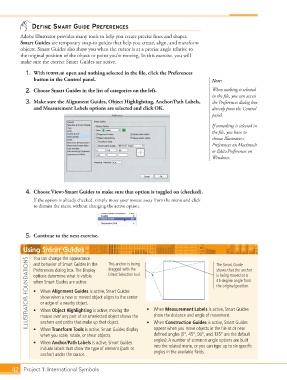
                 1.  With icons.ai open and nothing selected in the file, click the Preferences
                    button in the Control panel.                                             Note:

                 2.  Choose Smart Guides in the list of categories on the left.              When nothing is selected
                                                                                             in the file, you can access
                 3.  Make sure the Alignment Guides, Object Highlighting, Anchor/Path Labels,   the Preferences dialog box
                    and Measurement Labels options are selected and click OK.                directly from the Control
                                                                                             panel.

                                                                                             If something is selected in
                                                                                             the file, you have to
                                                                                             choose Illustrator>
                                                                                             Preferences on Macintosh
                                                                                             or Edit>Preferences on
                                                                                             Windows.


                 4.  Choose View>Smart Guides to make sure that option is toggled on (checked).
                    If the option is already checked, simply move your mouse away from the menu and click
                    to dismiss the menu without changing the active option.


                 5.  Continue to the next exercise.

                Using Smart Guides                 This anchor is being                        The Smart Guide

                    You can change the appearance
                  ILLUSTRATOR FOUNDATIONS  options determine what is visible    Direct Selection tool.    •  When Measurement Labels is active, Smart Guides
                    and behavior of Smart Guides in the
                                                   dragged with the
                    Preferences dialog box. The Display
                                                                                               shows that the anchor
                                                                                               is being moved at a
                                                                                               45-degree angle from
                    when Smart Guides are active:
                                                                                               the original position.
                    •  When Alignment Guides is active, Smart Guides
                       show when a new or moved object aligns to the center
                       or edge of a nearby object.
                    •  When Object Highlighting is active, moving the
                                                                     show the distance and angle of movement.
                       mouse over any part of an unselected object shows the
                       anchors and paths that make up that object.
                                                                     appear when you move objects in the file at or near
                    •  When Transform Tools is active, Smart Guides display
                                                                     defined angles (0°, 45°, 90°, and 135° are the default
                       when you scale, rotate, or shear objects.   •  When Construction Guides is active, Smart Guides
                    •  When Anchor/Path Labels is active, Smart Guides   angles). A number of common angle options are built
                       include labels that show the type of element (path or   into the related menu, or you can type up to six specific
                       anchor) under the cursor.                     angles in the available fields.


           42 Project 1: International Symbols

