


Page 51 - CC2019_PS_Look_Inside
P. 51
STAGE 3 / Creating Complex Selections


                 Photoshop includes a number of options for making selections based on the color content of an
                 image. Th  e method you use will vary depending on the actual content of your image, as well as what
                 you hope to accomplish.
                    Th  e  Magic Wand tool is an easy way to select large areas of solid color.
                    •  Th  e fi rst options in the  Options
                       bar are the same as those for the
                       Marquee tools ( New,  Add To,
                         Subtract From, and  Intersect).
                    •   Tolerance is the degree of
                       variation between the color you
                       click and the colors Photoshop
                       will select. Higher tolerance
                       values select a larger range based
                       on the color you click.

                    •  Th  e  Anti-alias check box allows
                       edges to blend more smoothly
                       into the background, preventing a jagged appearance.  Anti-aliasing is the process of blending
                       shades of pixels to create the illusion of sharp lines.
                    • When Contiguous is selected, the tool only selects adjacent areas of the color; unchecking this
                       option allows you to select all pixels within the tolerance, even if some are noncontiguous.
                    •  By default, selections relate to the active layer only. You can check  Sample All Layers to
                       make a selection of all layers in the fi le.

                    •  Th  e  Select Subject button allows Photoshop to automatically make a selection based on
                       what it determines to be the main “subject” of the photo.

                    •  Th  e  Select and Mask button opens a special workspace where you can use a number of tools
                       to fi ne-tune the selection edge.

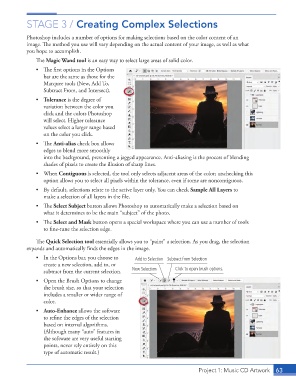
                    Th  e  Quick Selection tool essentially allows you to “paint” a selection. As you drag, the selection
                 expands and automatically fi nds the edges in the image.
                    •  In the Options bar, you choose to   Add to Selection Subtract from Selection
                       create a new selection, add to, or
                       subtract from the current selection.  New Selection  Click to open brush options.

                    •  Open the Brush Options to change
                       the brush size, so that your selection
                       includes a smaller or wider range of
                       color.

                    •  Auto-Enhance allows the software
                       to refi ne the edges of the selection
                       based on internal algorithms.
                       (Although many “auto” features in
                       the software are very useful starting
                       points, never rely entirely on this
                       type of automatic result.)


                                                                                    Project 1: Music CD Artwork  63

