


Page 67 - CC2017_PS_Look_Inside
P. 67
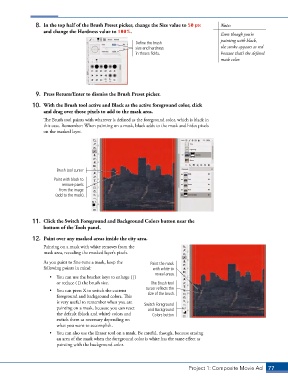
8.  In the top half of the Brush Preset picker, change the Size value to 50 px   Note:
                   and change the Hardness value to 100%.
                                                                                            Even though you’re
                                                                                            painting with black,
                                                         Define the brush
                                                         size and hardness                  the stroke appears as red
                                                         in theses fields.                  because that’s the defined
                                                                                            mask color.


                9.  Press Return/Enter to dismiss the Brush Preset picker.

               10.  With the Brush tool active and Black as the active foreground color, click
                   and drag over those pixels to add to the mask area.
                   The Brush tool paints with whatever is defined as the foreground color, which is black in
                   this case. Remember: When painting on a mask, black adds to the mask and hides pixels
                   on the masked layer.


                        Brush tool cursor

                       Paint with black to
                           remove pixels
                         from the image
                        (add to the mask).


               11.  Click the Switch Foreground and Background Colors button near the
                   bottom of the Tools panel.

               12.  Paint over any masked areas inside the city area.
                   Painting on a mask with white removes from the
                   mask area, revealing the masked layer’s pixels.

                   As you paint to fine-tune a mask, keep the   Paint the mask
                   following points in mind:                    with white to
                                                                 reveal areas.
                      •  You can use the bracket keys to enlarge (])
                        or reduce ([) the brush size.          The Brush tool
                      •  You can press X to switch the current   cursor reflects the
                        foreground and background colors. This   size of the brush.
                        is very useful to remember when you are   Switch Foreground
                        painting on a mask, because you can reset   and Background
                        the default (black and white) colors and   Colors button
                        switch them as necessary depending on
                        what you want to accomplish.
                      •  You can also use the Eraser tool on a mask. Be careful, though, because erasing
                        an area of the mask when the foreground color is white has the same effect as
                        painting with the background color.


                                                                               Project 1: Composite Movie Ad    77

