


Page 70 - CC2017_PS_Look_Inside
P. 70
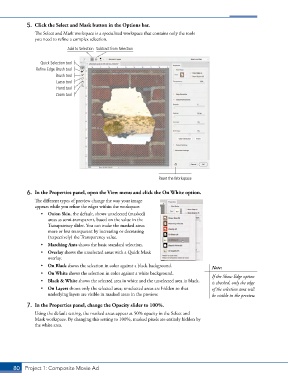
5.  Click the Select and Mask button in the Options bar.
               The Select and Mask workspace is a specialized workspace that contains only the tools
               you need to refine a complex selection.

                             Add to Selection Subtract from Selection


                  Quick Selection tool
                Refine Edge Brush tool
                        Brush tool
                        Lasso tool
                        Hand tool
                        Zoom tool


                                                                  Reset the Workspace


            6.  In the Properties panel, open the View menu and click the On White option.
               The different types of preview change the way your image
               appears while you refine the edges within the workspace.
                  •  Onion Skin, the default, shows unselected (masked)
                     areas as semi-transparent, based on the value in the
                     Transparency slider. You can make the masked areas
                     more or less transparent by increasing or decreasing
                     (respectively) the Transparency value.
                  •  Marching Ants shows the basic standard selection.
                  •  Overlay shows the unselected areas with a Quick Mask
                     overlay.
                  •  On Black shows the selection in color against a black background.  Note:
                  •  On White shows the selection in color against a white background.  If the Show Edge option
                  •  Black & White shows the selected area in white and the unselected area in black.  is checked, only the edge
                  •  On Layers shows only the selected area; unselected areas are hidden so that   of the selection area will
                     underlying layers are visible in masked areas in the preview.      be visible in the preview.

            7.  In the Properties panel, change the Opacity slider to 100%.
               Using the default setting, the masked areas appear at 50% opacity in the Select and
               Mask workspace. By changing this setting to 100%, masked pixels are entirely hidden by
               the white area.


       80 Project 1: Composite Movie Ad

