


Page 32 - CC2017_PS_Look_Inside
P. 32
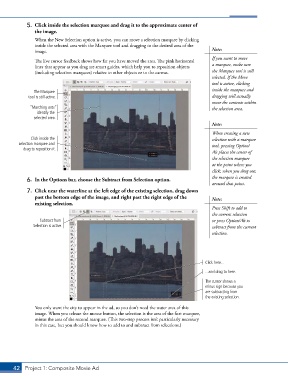
5.  Click inside the selection marquee and drag it to the approximate center of
               the image.

               When the New Selection option is active, you can move a selection marquee by clicking
               inside the selected area with the Marquee tool and dragging to the desired area of the
               image.                                                                   Note:
                                                                                        If you want to move
               The live cursor feedback shows how far you have moved the area. The pink horizontal
               lines that appear as you drag are smart guides, which help you to reposition objects   a marquee, make sure
               (including selection marquees) relative to other objects or to the canvas.  the Marquee tool is still
                                                                                        selected. If the Move
                                                                                        tool is active, clicking
                                                                                        inside the marquee and
               The Marquee
             tool is still active.                                                      dragging will actually
                                                                                        move the contents within
             “Marching ants”                                                            the selection area.
                identify the
               selected area.
                                                                                        Note:

                                                                                        When creating a new
              Click inside the                                                          selection with a marquee
         selection marquee and                                                          tool, pressing Option/
           drag to reposition it.
                                                                                        Alt places the center of
                                                                                        the selection marquee
                                                                                        at the point where you
                                                                                        click; when you drag out,
                                                                                        the marquee is created
            6.  In the Options bar, choose the Subtract from Selection option.
                                                                                        around that point.
            7.  Click near the waterline at the left edge of the existing selection, drag down
               past the bottom edge of the image, and right past the right edge of the   Note:
               existing selection.
                                                                                        Press Shift to add to
                                                                                        the current selection
                 Subtract from                                                          or press Option/Alt to
               Selection is active.                                                     subtract from the current
                                                                                        selection.


                                                                                      Click here...
                                                                                      ...and drag to here.

                                                                                      The cursor shows a
                                                                                      minus sign because you
                                                                                      are subtracting from
                                                                                      the existing selection.
               You only want the city to appear in the ad, so you don’t need the water area of this
               image. When you release the mouse button, the selection is the area of the first marquee,
               minus the area of the second marquee. (This two-step process isn’t particularly necessary
               in this case, but you should know how to add to and subtract from selections.)


       42 Project 1: Composite Movie Ad

