


Page 23 - Adobe Photoshop 2022
P. 23
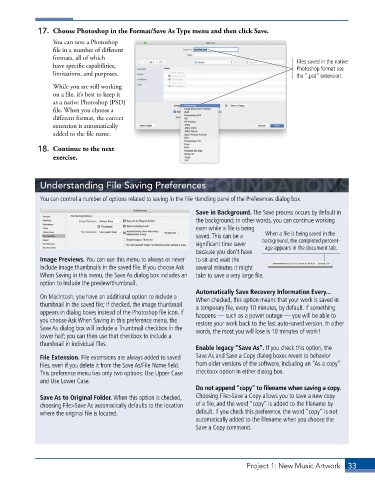
17.  Choose Photoshop in the Format/Save As Type menu and then click Save.
                 You can save a Photoshop
                 file in a number of different
                 formats, all of which
                 have specific capabilities,                                                Files saved in the native
                                                                                            Photoshop format use
                 limitations, and purposes.                                                 the “.psd” extension.
                 While you are still working
                 on a file, it’s best to keep it
                 as a native Photoshop (PSD)
                 file. When you choose a
                 different format, the correct
                 extension is automatically
                 added to the file name.

             18.  Continue to the next
                 exercise.


             Understanding File Saving Preferences

             You can control a number of options related to saving in the File Handling pane of the Preferences dialog box.

                                                             Save in Background . The Save process occurs by default in
                                                             the background; in other words, you can continue working
                                                             even while a file is being
                                                             saved. This can be a   When a file is being saved in the
                                                             significant time saver   background, the completed percent-
                                                                                  age appears in the document tab.
                                                             because you don’t have
             Image Previews . You can use this menu to always or never   to sit and wait the
             include image thumbnails in the saved file. If you choose Ask   several minutes it might
             When Saving in this menu, the Save As dialog box includes an   take to save a very large file.
             option to include the preview/thumbnail.
                                                             Automatically Save Recovery Information Every . . .
             On Macintosh, you have an additional option to include a   When checked, this option means that your work is saved in
             thumbnail in the saved file; if checked, the image thumbnail   a temporary file, every 10 minutes, by default. If something
             appears in dialog boxes instead of the Photoshop file icon. If   happens — such as a power outage — you will be able to
             you choose Ask When Saving in this preference menu, the   restore your work back to the last auto-saved version. In other
             Save As dialog box will include a Thumbnail checkbox in the   words, the most you will lose is 10 minutes of work!
             lower half; you can then use that checkbox to include a
             thumbnail in individual files.
                                                             Enable legacy “Save As” . If you check this option, the
             File Extension . File extensions are always added to saved   Save As and Save a Copy dialog boxes revert to behavior
             files, even if you delete it from the Save As/File Name field.   from older versions of the software, including an “As a copy”
             This preference menu has only two options: Use Upper Case   checkbox option in either dialog box.
             and Use Lower Case.
                                                             Do not append “copy” to filename when saving a copy .
             Save As to Original Folder . When this option is checked,   Choosing File>Save a Copy allows you to save a new copy
             choosing File>Save As automatically defaults to the location   of a file, and the word “copy” is added to the filename by
             where the original file is located.             default. If you check this preference, the word “copy” is not
                                                             automatically added to the filename when you choose the
                                                             Save a Copy command.


                                                                            Project 1: New Music Artwork   33

