


Page 44 - Adobe Photoshop 2021
P. 44
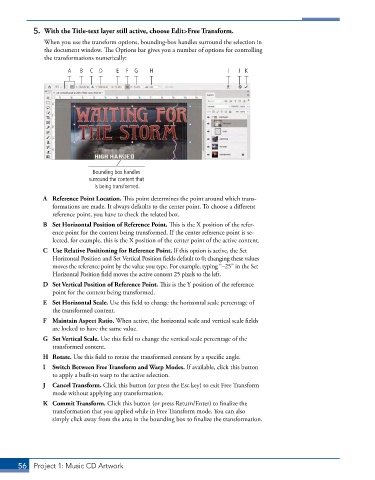
5.  With the Title-text layer still active, choose Edit>Free Transform.
               When you use the transform options, bounding-box handles surround the selection in
               the document window. The Options bar gives you a number of options for controlling
               the transformations numerically:

                      A  B  C  D     E  F  G   H                       I  J K


                             Bounding box handles
                            surround the content that
                              is being transformed.
              A  Reference Point Location. This point determines the point around which trans-
                 formations are made. It always defaults to the center point. To choose a different
                 reference point, you have to check the related box.
              B  Set Horizontal Position of Reference Point. This is the X position of the refer-
                 ence point for the content being transformed. If the center reference point is se-
                 lected, for example, this is the X position of the center point of the active content.
              C  Use Relative Positioning for Reference Point. If this option is active, the Set
                 Horizontal Position and Set Vertical Position fields default to 0; changing these values
                 moves the reference point by the value you type. For example, typing “–25” in the Set
                 Horizontal Posi tion field moves the active content 25 pixels to the left.
              D  Set Vertical Position of Reference Point. This is the Y position of the reference
                 point for the content being transformed.
              E  Set Horizontal Scale. Use this field to change the horizontal scale percentage of
                 the transformed content.
              F  Maintain Aspect Ratio. When active, the horizontal scale and vertical scale fields
                 are locked to have the same value.
              G  Set Vertical Scale. Use this field to change the vertical scale percentage of the
                 transformed content.
              H  Rotate. Use this field to rotate the transformed content by a specific angle.
              I  Switch Between Free Transform and Warp Modes. If available, click this button
                 to apply a built-in warp to the active selection.
              J  Cancel Transform. Click this button (or press the Esc key) to exit Free Transform
                 mode without applying any transformation.
              K  Commit Transform. Click this button (or press Return/Enter) to finalize the
                 transformation that you applied while in Free Transform mode. You can also
                 simply click away from the area in the bounding box to finalize the transformation.


       56  Project 1: Music CD Artwork

