


Page 41 - Adobe Photoshop 2021
P. 41
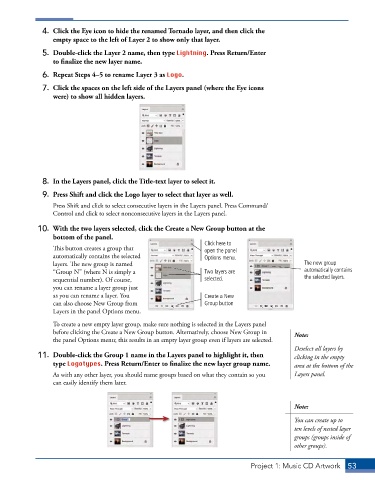
4.  Click the Eye icon to hide the renamed Tornado layer, and then click the
                 empty space to the left of Layer 2 to show only that layer.
              5.  Double-click the Layer 2 name, then type Lightning. Press Return/Enter
                 to finalize the new layer name.
              6.  Repeat Steps 4–5 to rename Layer 3 as Logo.

              7.  Click the spaces on the left side of the Layers panel (where the Eye icons
                 were) to show all hidden layers.


              8.  In the Layers panel, click the Title-text layer to select it.
              9.  Press Shift and click the Logo layer to select that layer as well.
                 Press Shift and click to select consecutive layers in the Layers panel. Press Command/
                 Control and click to select nonconsecutive layers in the Layers panel.

             10.  With the two layers selected, click the Create a New Group button at the
                 bottom of the panel.
                                                               Click here to
                 This button creates a group that              open the panel
                 automatically contains the selected           Options menu.
                 layers. The new group is named                                               The new group
                 “Group N” (where N is simply a                Two layers are                 automatically contains
                 sequential number). Of course,                selected.                      the selected layers.
                 you can rename a layer group just
                 as you can rename a layer. You                Create a New
                 can also choose New Group from                Group button
                 Layers in the panel Options menu.

                 To create a new empty layer group, make sure nothing is selected in the Layers panel
                 before clicking the Create a New Group button. Alternatively, choose New Group in   Note:
                 the panel Options menu; this results in an empty layer group even if layers are selected.
                                                                                           Deselect all layers by
             11.  Double-click the Group 1 name in the Layers panel to highlight it, then   clicking in the empty
                 type Logotypes. Press Return/Enter to finalize the new layer group name.   area at the bottom of the

                 As with any other layer, you should name groups based on what they contain so you   Layers panel.
                 can easily identify them later.


                                                                                           Note:
                                                                                           You can create up to
                                                                                           ten levels of nested layer
                                                                                           groups (groups inside of
                                                                                           other groups).


                                                                              Project 1: Music CD Artwork  53

