


Page 40 - Adobe Photoshop 2021
P. 40
STAGE 2 / Managing Layers

         Photoshop includes a number of options for managing layers: naming layers for easier recognition,
         creating layer groups so multiple layers can be manipulated at once, moving layers around on the
         canvas, transforming layers both destructively and non-destructively, controlling individual layer
         visibility, and arranging the top-to-bottom stacking order of layers to determine exactly what is
         visible. You will use all of these options in this stage of the project.


               Name Layers and Layer Groups

         It’s always a good idea to name your layers because it makes managing the file much
         easier — especially when you work with files that include dozens of layers. Even with
         only four unnamed layers in this file (counting the Background layer), it would be
         tedious to have to toggle each layer on to find the one you want.

           1.  With cd-artwork.psd open, review the Layers panel.

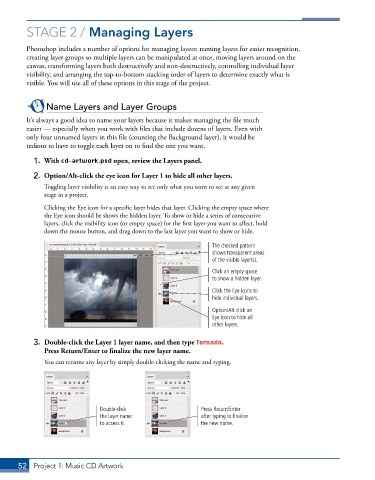
           2.  Option/Alt-click the eye icon for Layer 1 to hide all other layers.
               Toggling layer visibility is an easy way to see only what you want to see at any given
               stage in a project.

               Clicking the Eye icon for a specific layer hides that layer. Clicking the empty space where
               the Eye icon should be shows the hidden layer. To show or hide a series of consecutive
               layers, click the visibility icon (or empty space) for the first layer you want to affect, hold
               down the mouse button, and drag down to the last layer you want to show or hide.

                                                                  The checked pattern
                                                                  shows transparent areas
                                                                  of the visible layer(s).
                                                                  Click an empty space
                                                                  to show a hidden layer.

                                                                  Click the Eye icons to
                                                                  hide individual layers.
                                                                  Option/Alt-click an
                                                                  Eye icon to hide all
                                                                  other layers.

           3.  Double-click the Layer 1 layer name, and then type Tornado.
               Press Return/Enter to finalize the new layer name.
               You can rename any layer by simply double-clicking the name and typing.


                                Double-click                  Press Return/Enter
                                the layer name                after typing to finalize
                                to access it.                 the new name.


       52  Project 1: Music CD Artwork

