


Page 50 - CS6_AI_Look_Inside.pdf
P. 50
rotate drawing oBjects
               Very few projects are entirely horizontal, making rotating objects a foundational
               Illustrator skill. In this exercise, you use several rotation techniques to create the rest of
               the snowflake artwork.

                 1.  With icons.ai open, make sure the grouped object is selected.

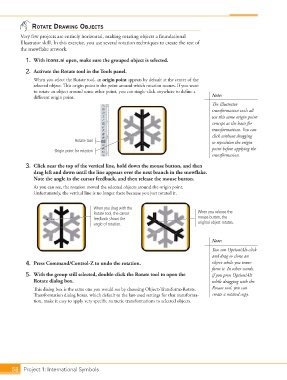
                 2.  Activate the Rotate tool in the Tools panel.
                    When you select the Rotate tool, an origin point appears by default at the center of the
                    selected object. This origin point is the point around which rotation occurs. If you want
                    to rotate an object around some other point, you can single-click anywhere to define a
                    different origin point.                                                  Note:
                                                                                             The Illustrator
                                                                                             transformation tools all
                                                                                             use this same origin point
                                                                                             concept as the basis for
                                                                                             transformations. You can
                                                                                             click without dragging
                                     Rotate tool                                             to reposition the origin
                                                                                             point before applying the
                             Origin point for rotation
                                                                                             transformation.
                 3.  Click near the top of the vertical line, hold down the mouse button, and then
                    drag left and down until the line appears over the next branch in the snowflake.
                    Note the angle in the cursor feedback, and then release the mouse button.
                    As you can see, the rotation moved the selected objects around the origin point.
                    Unfortunately, the vertical line is no longer there because you just rotated it.


                                             When you drag with the
                                             Rotate tool, the cursor                    When you release the
                                             feedback shows the                         mouse button, the
                                             angle of rotation.                         original object rotates.


                                                                                             Note:
                                                                                             You can Option/Alt-click
                                                                                             and drag to clone an
                 4.  Press Command/Control-Z to undo the rotation.                           object while you trans -
                                                                                             form it. In other words,
                 5.  With the group still selected, double-click the Rotate tool to open the   if you press Option/Alt
                    Rotate dialog box.                                                       while dragging with the
                    This dialog box is the same one you would see by choosing Object>Transform>Rotate.   Rotate tool, you can
                    Transformation dialog boxes, which default to the last-used settings for that transforma-  create a rotated copy.
                    tion, make it easy to apply very specific numeric transformations to selected objects.


           58 Project 1: International Symbols

