


Page 13 - Adobe Dream Viewer 2021
P. 13
STAGE 1 / Exploring Site Structure


            When you start a new project that involves updating an existing site, your first task is to assess the

            file and folder structure. Doing so gives you a good idea of what the site contains.
               A small site with only a few pages requires very little organization. In fact, you can place all of


            the files — web pages and image files — in one folder, although even a small site benefits from a

            dedicated folder for images. Larger sites, however, require careful organization of file names, pages,
            and image files. A good site design with excellent organization speeds up development now, and

            makes it much easier to update later.
                  Create a New Site Defi nition


            Websites are designed so all of the pages, image files, style sheets, and other resources
            are stored on your local drive in a folder called the root folder. Other folders can be
            placed inside (below) the root folder to make it easier to manage and organize files.

             1. Download Bistro_DW21_RF.zip from the Student Files web page.

             2.  Expand the ZIP archive in your WIP folder (Macintosh) or copy the         Note:
                 archive contents into your WIP folder (Windows).
                                                                                           If necessary, refer to


                 This results in a folder named Bistro, which contains all the files you need to   Page 14 of the Interface
                 complete this project.
                                                                                           chapter for specific in-

             3.  In Dreamweaver, set up your workspace so the Files, Insert, and Properties   structions on expanding
                 panels are visible.                                                       or accessing the required
                                                                                           resource files.


                 It doesn’t matter which saved workspace you use. The primary tools you need for this
                 project are the Files, Insert, and Properties panels. We have closed all other panels to
                 maximize the available space in our screen captures.
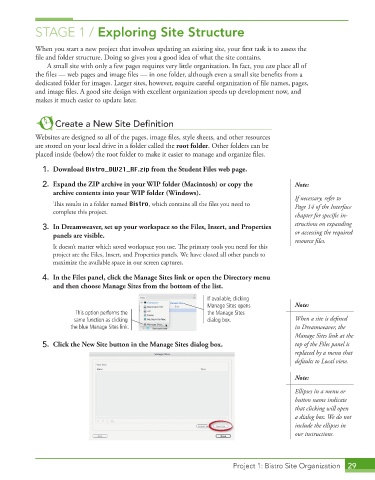
             4.  In the Files panel, click the Manage Sites link or open the Directory menu
                 and then choose Manage Sites from the bottom of the list.
                                                                If available, clicking
                                                                Manage Sites opens         Note:
                        This option performs the                the Manage Sites

                        same function as clicking               dialog box.                When a site is defined
                       the blue Manage Sites link.                                         in Dreamweaver, the
                                                                                           Manage Sites link at the
             5.  Click the New Site button in the Manage Sites dialog box.                 top of the Files panel is
                                                                                           replaced by a menu that
                                                                                           defaults to Local view.

                                                                                           Note:

                                                                                           Ellipses in a menu or
                                                                                           button name indicate
                                                                                           that clicking will open
                                                                                           a dialog box. We do not
                                                                                           include the ellipses in
                                                                                           our instructions.


                                                                        Project 1: Bistro Site Organization  29

